In this article I will learn how to correctly configure search fields and what the different field and filter types mean.
Important note on Exports in Staffcloud:
In Staffcloud, every user with the appropriate permissions can create, configure, and use their own export templates. This is a unique strength of our system and unlocks powerful possibilities – from simple lists to complex, highly structured data exports.
Because exports in Staffcloud are very powerful but also technically complex, the related guides and tutorials are intentionally detailed and technical. Please take your time, be patient with yourself, and follow the step-by-step learning path across multiple articles that we have prepared to build up your knowledge in a structured and sustainable way.
To fully understand and correctly use exports in Staffcloud, we recommend working through the following solution articles in the given order and trying out the examples in parallel in your own instance:
- [WIP] Recommended settings in Staffcloud and on your device (Excel)
- Exporting Staffcloud-Data
- Creating Export Templates
- Creating Export Templates: Column Configuration
- Creating Export Templates: Search form Configuration → you are here!
- Direct Exports: Using Embedded Export Templates
- Direct Exports: Configure an Embedded Export Template
You can also find a “construction guide” for frequently requested export templates in the following area: DIY Tutorials for frequently requested Export Templates
Jump to section
- What is a filter in an export and why is it important?
- How do I define a data field as a filter?
- Search field types in exports (glossary)
- Filter types – glossary, effect, and recommended usage
- Default values in filters
- Hide columns in the export, but still filter
- Lock filters
What is a filter in an export and why is it important?
A filter in an export (also called a search field) determines which records are included in the export at all. Before an export is generated, the data can be narrowed down based on defined criteria – for example by assignment period, status, project, or employee.
Correctly used filters bring several advantages:
- Better results
You only export the data you actually need – no unnecessary entries. - Time savings
Less data means faster exports and less post-processing in Excel or other tools. - Reduced system load
Large, unfiltered exports put unnecessary load on the system. - Avoiding timeouts
Especially with large data volumes, a missing or incorrect filter can cause an export to not finish at all.
Rule of thumb: The larger the data volume, the more important clean and targeted filters are.
How do I define a data field as a filter?
When you select a column, the areas “Column configuration” and “Search form” open on the right. By clicking SEARCHABLE in the lower box, you activate the filter for the selected data field and the search form configuration opens. You can identify search fields in the column overview by the blue magnifying glass icon.
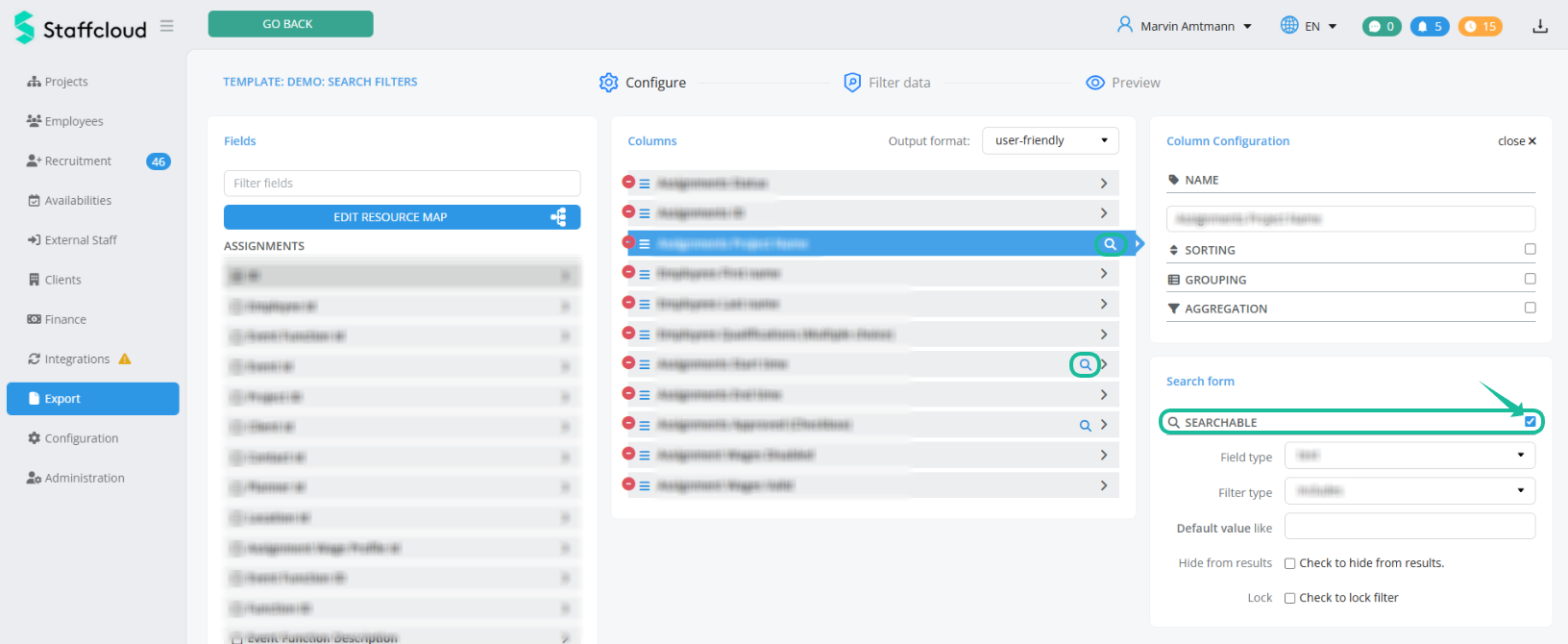
In this article, we focus exclusively on the “Search form” area. How to further configure columns in the template (sorting, grouping, aggregating) is explained in this article: Create export template: Column Configuration
Search field types in exports (glossary)
Not every data field is suitable for every filter type. Most data fields are text search field types only. In Staffcloud, some data fields can also be converted into certain other search field types for filtering, to make them more user-friendly and meaningfully filterable.
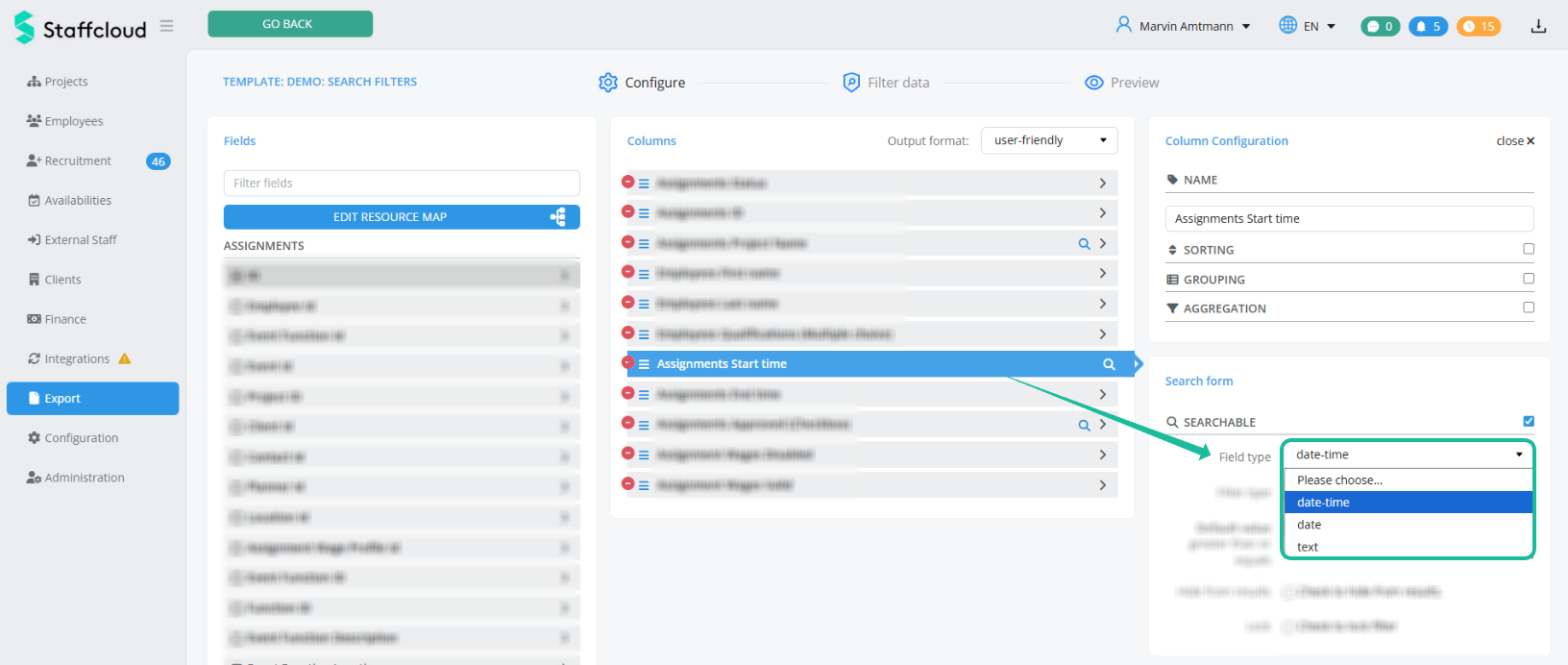
Which types of data fields exist in Staffcloud and how to create new data fields is explained in this article: Data fields & Forms
In the following table you can see which search field types individual data fields can be converted into for filtering, and which filter types make sense for the respective field type.
✅ = useful / recommended
⚠️ = technically possible, but usually not useful
❌ = not useful or not available
What the individual filter types do is explained in the next section under Filter types – glossary, effect, and recommended usage
| Data field Example | Search Field type (default = bold) | Filter type (default = bold) |
| Checkbox e.g. Data Privacy accepted | ✅ checkbox ⚠️ text | ✅ equals ⚠️ advanced ❌ in |
| Choice (Dropdown) e.g. Gender | ✅ select (Dropdown) | ✅ equals ❌ in |
| Date e.g. Date of birth | ✅ date ⚠️ text | ⚠️ equals ✅ in range (inclusive) |
| Date and time e.g. [Assignments] Start time | ⚠️ date-time ✅ date (recommended) ⚠️ text | ⚠️ equals ✅ in range (inclusive) |
| Decimal (integer) e.g. Height in meters | ✅ text | ⚠️ includes ✅ in range (inclusive) |
| Email address | ✅ text | ⚠️ equals ⚠️ includes ✅ in |
| File upload (Upload) e.g. ID upload | ✅ text | ❌ includes ⚠️ advanced |
| Index (integer) e.g. auto-increment employee ID | ✅ text | ⚠️ includes ✅ in range (inclusive) |
| Money (integer) e.g. Hourly Rate | ✅ text | ⚠️ includes ✅ in range (inclusive) |
| Multiple choice e.g. Qualifications | ✅ multi-select | ✅ multi-select ❌ equals ❌ in |
| Multiple choice with levels e.g. Languages + Language Level | ✅ text | ❌ not filterable in the Export |
| Number (integer) e.g. manually assigned employee ID from payroll system | ✅ text | ⚠️ includes ✅ in range (inclusive) |
| Phone number e.g. [Employees] Phone number | ✅ text | ⚠️ equals ⚠️ includes ✅ in |
| Rich text editor e.g. Remarks | ✅ text | ✅ equals ✅ includes ✅ in |
| Text e.g. [Employees] First name | ✅ text | ✅ equals ✅ includes ✅ in |
| Text (multiple lines) | ✅ text | ✅ equals ✅ includes ✅ in |
| Time e.g. Time of Day | ✅ time ⚠️ text | ⚠️ equals ✅ in range (inclusive) |
| Website (URL) e.g. Client-Homepage | ✅ text | ⚠️ equals ⚠️ includes ✅ in |
| Colour | ✅ text | ❌ no useful filter, only colour codes |
Honorable mentions & Exceptions | ||
| System IDs e.g. Assignments ID, Employees ID, ... | ✅ text | ✅ in (especially for Direct Exports) |
| System Status e.g. Assignment Status, Employee Status, ... | ⚠️ select (Dropdown) ✅ multi-select | ❌ equals ✅ in (works here like multi-select) ❌ advanced |
| Tags / Teams | ⚠️ text | ❌ not filterable in the Export |
| [Assignments] Approved like Checkbox | ✅ checkbox ⚠️ text | ✅ equals ❌ advanced |
Note:
Even though dropdowns, statuses, or multi-select fields are technically based on text, they are logically restricted fields and should be handled accordingly.
Filter types – glossary, effect, and recommended usage
In Staffcloud, filter types determine how a search field is evaluated and which records are ultimately included in the export. Depending on the data field type, different filter types are available. Not every filter type is useful or technically possible for every field.
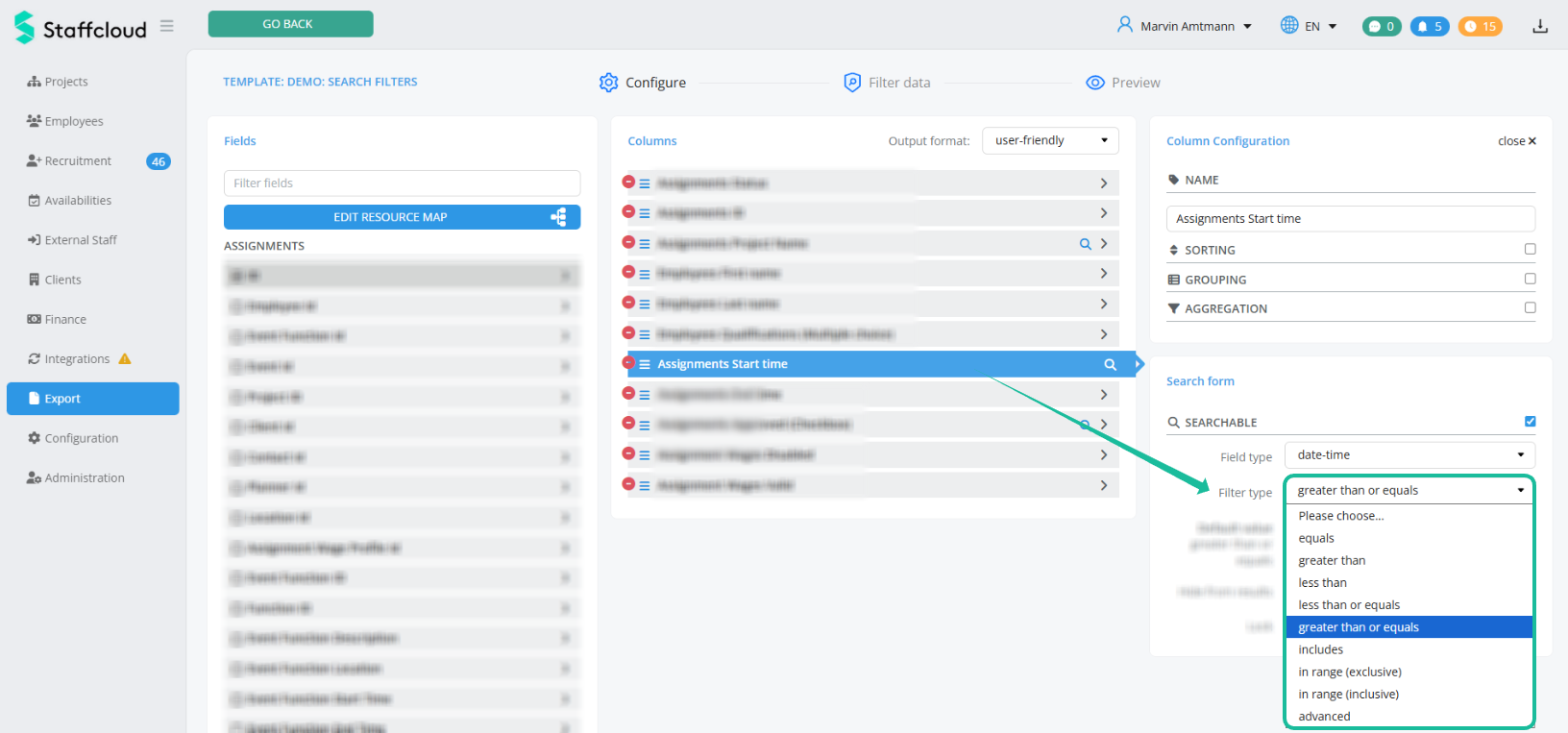
Most important difference between filter types (brief explanation)
- equals → exact value
- includes → partial match in text
- in → manual multi-select (comma-separated), can be used instead of equals in most cases
- multi-select → clean multi-select with a value list (only for multiple choice without levels)
- less / greater → value comparison (numbers)
- in range → range comparisons (numbers) within a value range, can also be used instead of less/greater.
- advanced→ complex logic (empty / not empty, special cases)
In the following, the individual filter types are explained, including their effect and typical use cases.
✅ = useful / recommended
⚠️ = technically possible, but usually not useful
❌ = not useful or not available
| Filter type | Explanation & Example | recommended for |
| equals | Checks whether the field value exactly matches the entered search value.
Example - equals: Note: You can achieve the same result using filter type “in”. With “in” you can also filter for multiple values at once. Example - "in" instead of "equals": | ✅ choice (Dropdown) ✅ checkbox ✅ structured text fields with fixed values ⚠️ System ID ❌ Status |
| includes | Checks whether the field value contains the entered search text as a substring.
Example - includes: [Employee] First name → includes → e.g. "mar" → finds Markus, Martin, Marvin, etc. | ✅ Name (employee, project, ...) ✅ Text (free text, notes field, ...) ⚠️ Email address ⚠️ Phone number ⚠️ Website (URL) Not recommended / available (even if technically stored as text): ❌ ID ❌ Status ❌ Choice (Dropdown) ❌ multi-select ❌ checkbox |
less / greater, e.g..
less / greater or equals, e.g.
| These filter types compare numeric or time-based values.
Example - less than: Example - less than or equals: Note: You can achieve the same results using the filter type “in range”. Example - "in range (inclusive)" instead of "less than or equals": | ✅ date ✅ Date and time ✅ numeric ⚠️ System ID ❌ Status ❌ Checkbox ❌ Choice (Dropdown) ❌ Multiple choice ❌ ... |
| in | Allows a “manual multi-select”, even without a predefined value list.
Example - in (System IDs): Example - "in" instead of "equals": | ✅ System IDs ✅ technically structured fields without dropdown ⚠️ Text ❌ Checkbox ❌ Choice (Dropdown) |
in range, e.g.
| These filters return all numeric or time-based values between a start value and an end value.
Example - in range (inclusive): Example - in range (exclusive): If only a start or only an end value is entered, all values from or until the comparison value are included (see also filter type “less / greater”). Example - "in range (inclusive)" instead of "less than or equals": | ✅ Date ✅ Date and time ✅ numeric ⚠️ System ID ❌ Status ❌ Checkbox ❌ Choice (Dropdown) ❌ Multiple choice ❌ ... |
| advanced | Allows applying more complex filter logic and e.g. filtering certain fields based on an ID. Since this is a very rare and complex filter, we generally recommend not using it. The Customer Success Team will be happy to help if needed. | ⚠️ very complex and rarely useful. |
| multi-select (only for Multiple choice without levels) |
Example - multi-select: | This filter type is only available for multiple-choice fields without levels. |
Even though many field types are technically based on text, they should be filtered logically correctly. A status is not free text, a checkbox is not a number, and a dropdown is not a search field for "includes".
Always choose the filter type that matches the business meaning of the data field – not the technical underlying type. Also consider the following tips:
✅ in range (exclusive) instead of less / greater
✅ in range (inclusive) instead of less / greater or equals
✅ in instead of equals
Default values in filters
A default value defines which value a filter is prefilled with automatically as soon as an export is started. For example:
- Multiple choice (e.g. [Assignments] Status) → multi-select → per default Assigned and Confirmed
- Text (e.g. [Assignments] Project name) → includes → per default Projects that start with a frequently used abbreviation (e.g. AKÜ, CW, ...)
- Checkbox (e.g. [Assignments] Approved) → equals → per default activated (yes) or deactivated (no)
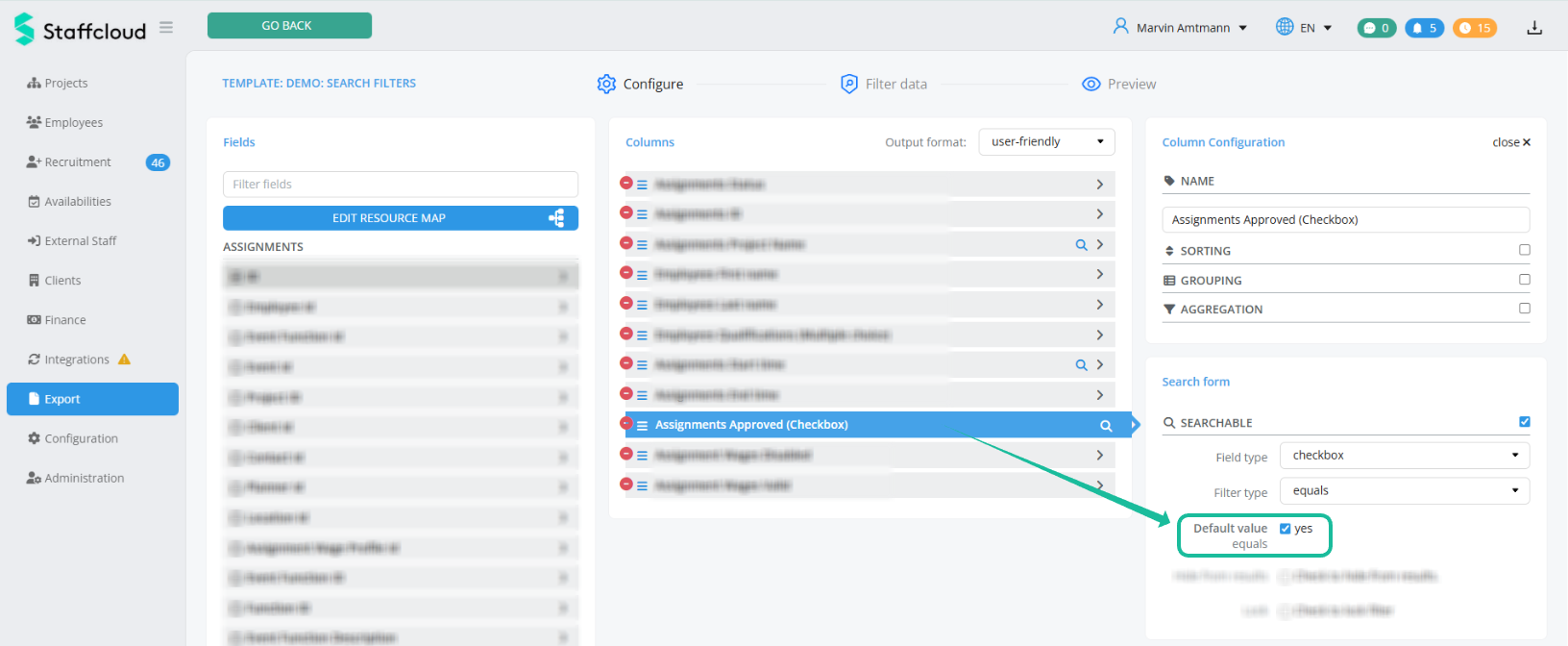
Default values simplify usage and reduce mistakes – especially for regularly used exports.
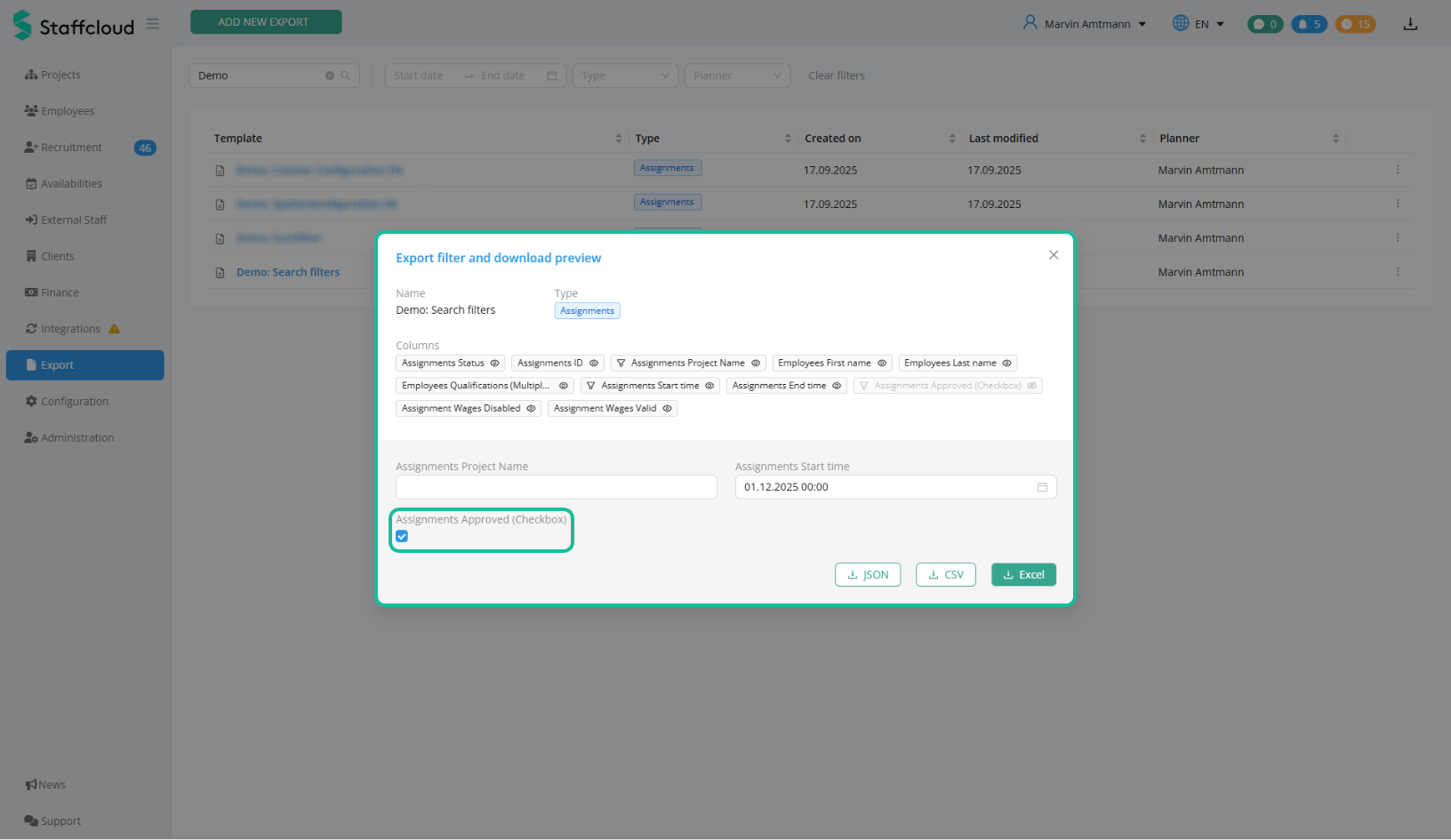
Hide columns in the export, but still filter
In Staffcloud it is possible to use data fields as filters without outputting them as columns in the export. This allows you, for example, to filter by assignment status or period without displaying this information in the final export.
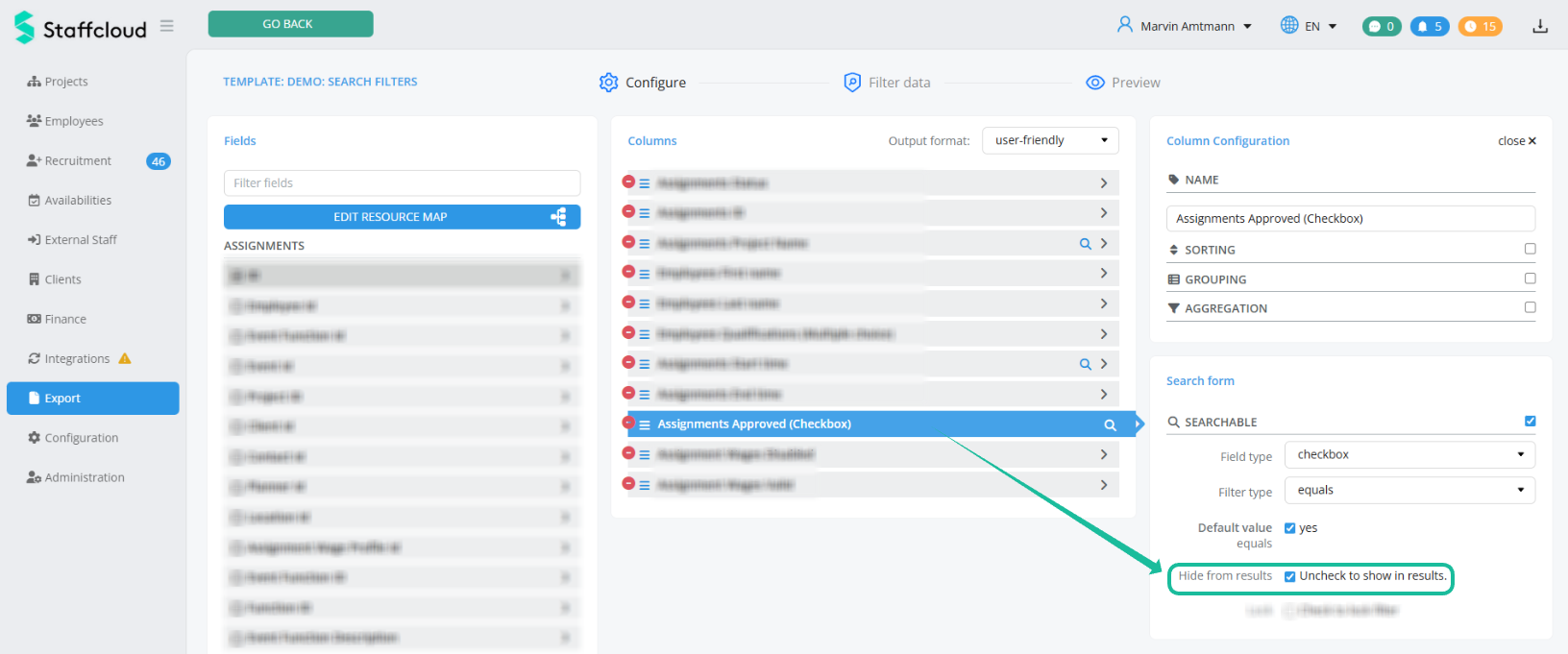
Enable the checkbox "Hide from results" so that the column is hidden by default in the template.
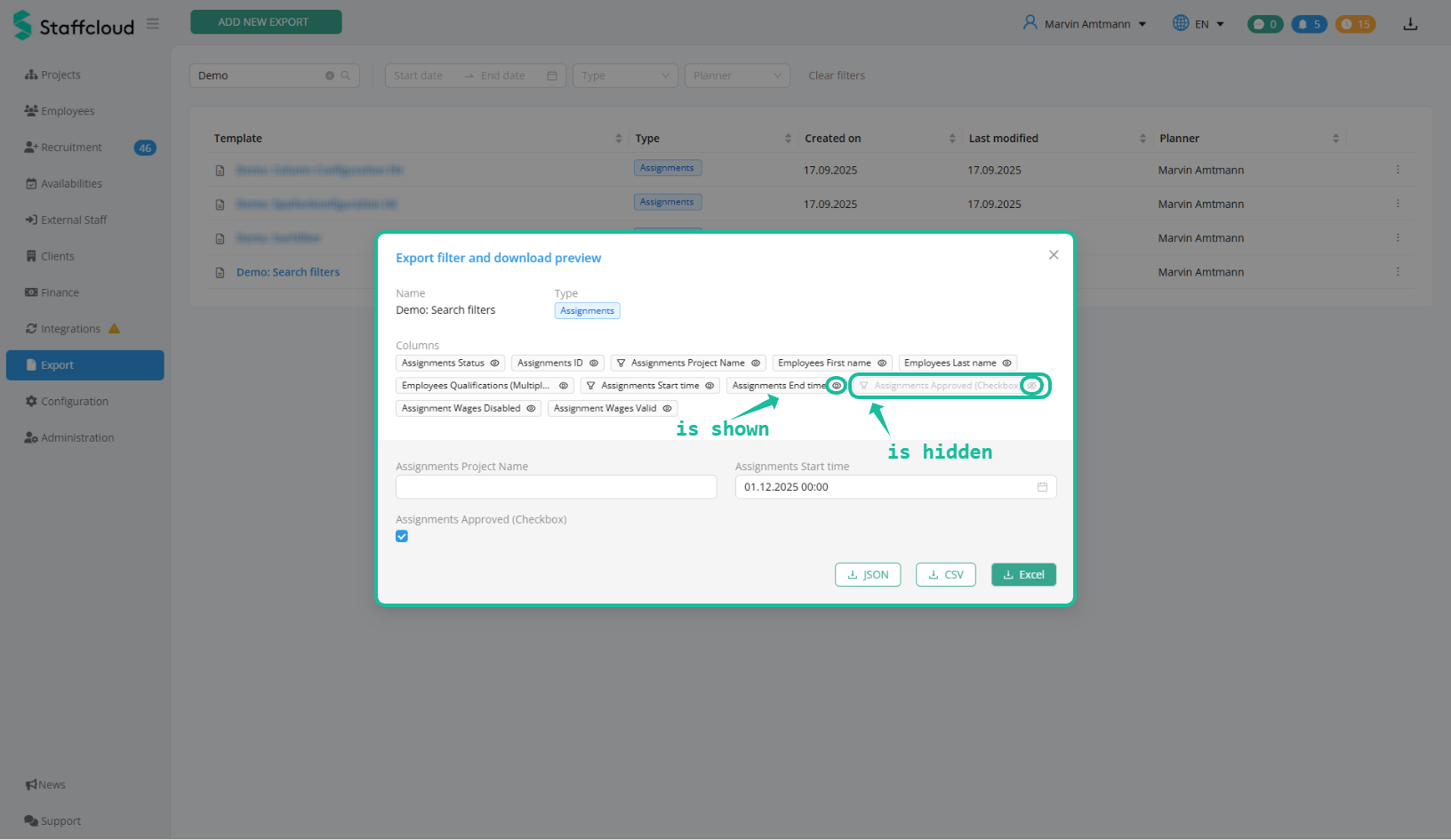
Please note: When running the export, a pop-up with the column and filter overview always appears first. There, hidden columns can be shown again with a click, and visible columns can be hidden as well, without changing the underlying export template.
Hidden columns can be recognized by the greyed-out data field and the crossed-out eye icon.
Lock filters
With the function “Lock”, search fields (filters) can be fixed in an export template. A locked filter is visible to the user but cannot be changed when exporting. This is ideal for recurring reports (e.g. monthly or project reports).
To lock a filter, enable the checkbox in the search form of the export configuration and save the export template.
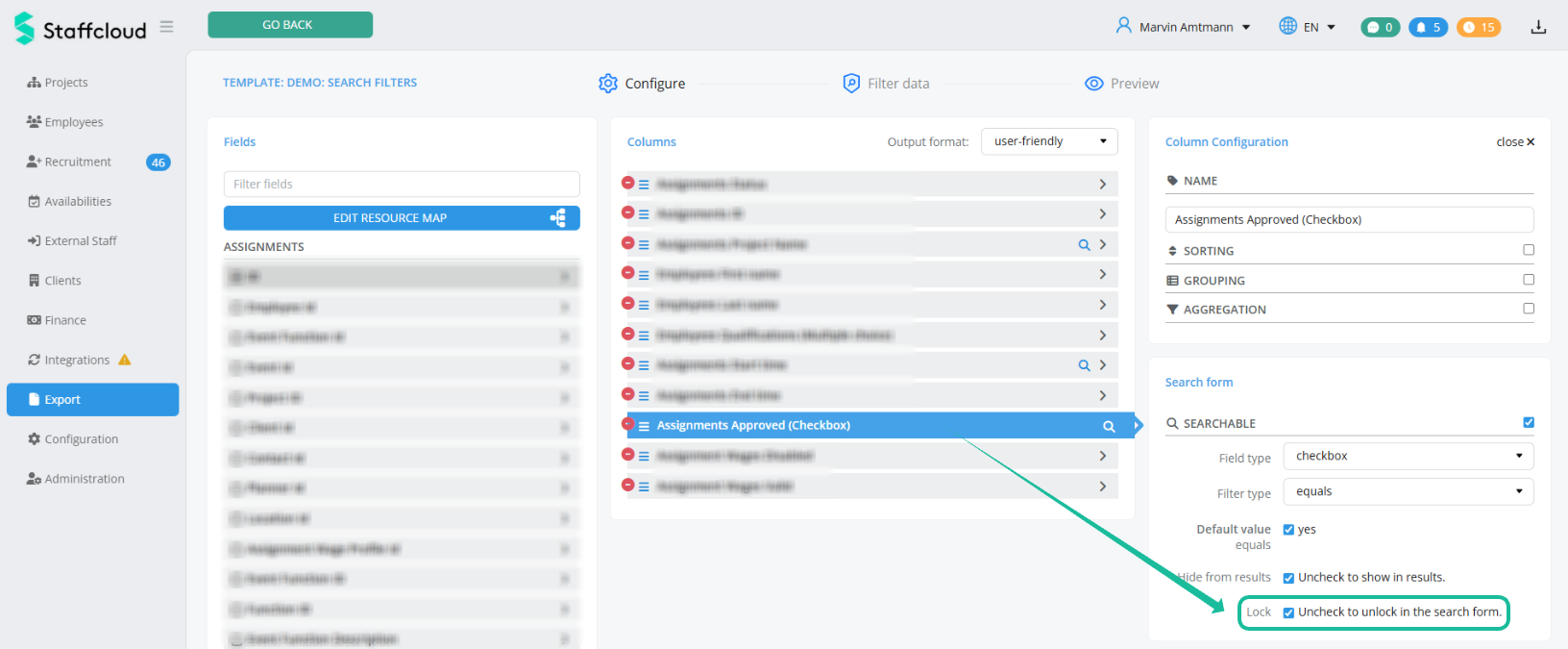
A locked filter when opening the export template…
- appears greyed out or read-only in the search form,
- shows the configured default value(s) (e.g. period or status),
- cannot be disabled or changed,
- is applied automatically when exporting, without further input.
Why a locked filter can be useful
- Prevents users from accidentally exporting incorrect or overly large data volumes
- Can ensure that sensitive data (e.g. closed periods) is not exported unintentionally
- All users receive identical results
- Prevents exports without restrictions
- Reduces system load and minimizes the risk of timeouts
Best Practices
- Use locked filters for predefined reports or direct exports
- Lock critical filters such as assignment, approval, or employee statuses
- Keep optional filters (e.g. name) intentionally unlocked
- Combination with default values and hidden columns: Locked filters logically build on default values. Combine multiple locked default values and hide them if needed to always get clean and precise results.
Example – part 1:
For payroll exports, the filter “[Assignments] Approved” → YES can be locked and then hidden so that only assignments within a user-defined period are exported that have already been approved (processed) in work data.
Example – part 2:
If individual (actively used) wage types should also be listed separately, the fields “[Assignment Wages] Disabled” → NO and “[Assignment Wages] Valid” → YES should also be locked and hidden.
Instructions for special filter configurations and frequently requested exports can be found under DIY Tutorials for frequently requested Export Templates
Relevant articles:
[WIP] Data field types
Creating Export Templates: Column Configuration
Direct Exports: Using Embedded Export Templates
Direct Exports: Configure an Embedded Export Template
DIY Tutorials for frequently requested Export Templates
Was this article helpful?
That’s Great!
Thank you for your feedback
Sorry! We couldn't be helpful
Thank you for your feedback
Feedback sent
We appreciate your effort and will try to fix the article