In this article, I’ll learn how direct (also called "embedded") exports work in Staffcloud and where they are availabl
Important note on Exports in Staffcloud:
In Staffcloud, every user with the appropriate permissions can create, configure, and use their own export templates. This is a unique strength of our system and unlocks powerful possibilities – from simple lists to complex, highly structured data exports.
Because exports in Staffcloud are very powerful but also technically complex, the related guides and tutorials are intentionally detailed and technical. Please take your time, be patient with yourself, and follow the step-by-step learning path across multiple articles that we have prepared to build up your knowledge in a structured and sustainable way.
To fully understand and correctly use exports in Staffcloud, we recommend working through the following solution articles in the given order and trying out the examples in parallel in your own instance:
- [WIP] Recommended settings in Staffcloud and on your device (Excel)
- Exporting Staffcloud-Data
- Creating Export Templates
- Creating Export Templates: Column Configuration
- [WIP] Creating Export Templates: Search form Configuration
- Direct Exports: Using Embedded Export Templates → you are here!
- Direct Exports: Configure an Embedded Export Template
You can also find a “construction guide” for frequently requested export templates in the following area: DIY Tutorials for frequently requested Export Templates
Jump to section [TOC]
What is a Direct / Embedded Export?
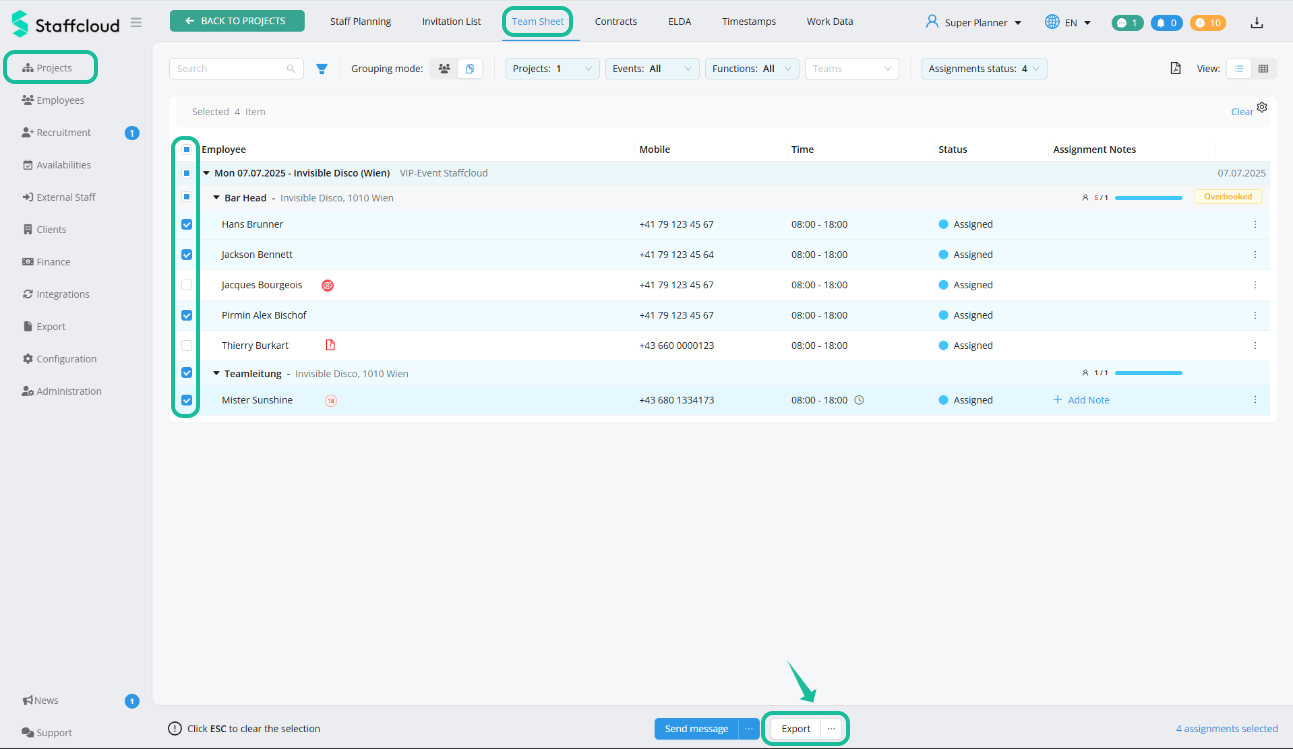
Direct exports allow you to export data contextually from within specific areas of the software — for example, from the team sheet, the employee overview, or the project overview.
Simply select the relevant data and click on "Export". The exported data depends on configurable templates, with options for different formats available.
Where Are Direct Exports Available?
Direct exports are available in the following areas of Staffcloud — provided that a corresponding export template has been configured:
Projects – Tabs Active, Draft, Aborted, Archived
- Projects – Staff Planning section
- Team Sheet tab
- Invitation List tab
- Timestamps tab (only with activated module)
- Work Data tab
- Employees – Employees tab
- Recruitment – Applicants and Candidates tabs
- External Staff – External Workers tab (only with activated module)
- Finance – Pay Runs tab (only with activated module)
How to Trigger a Direct Export
Each of these areas can support one or more export templates. One of them can be set as the default.
Learn how to create and configure those export templates in this article: Direct Exports: Configure an Embedded Export Template
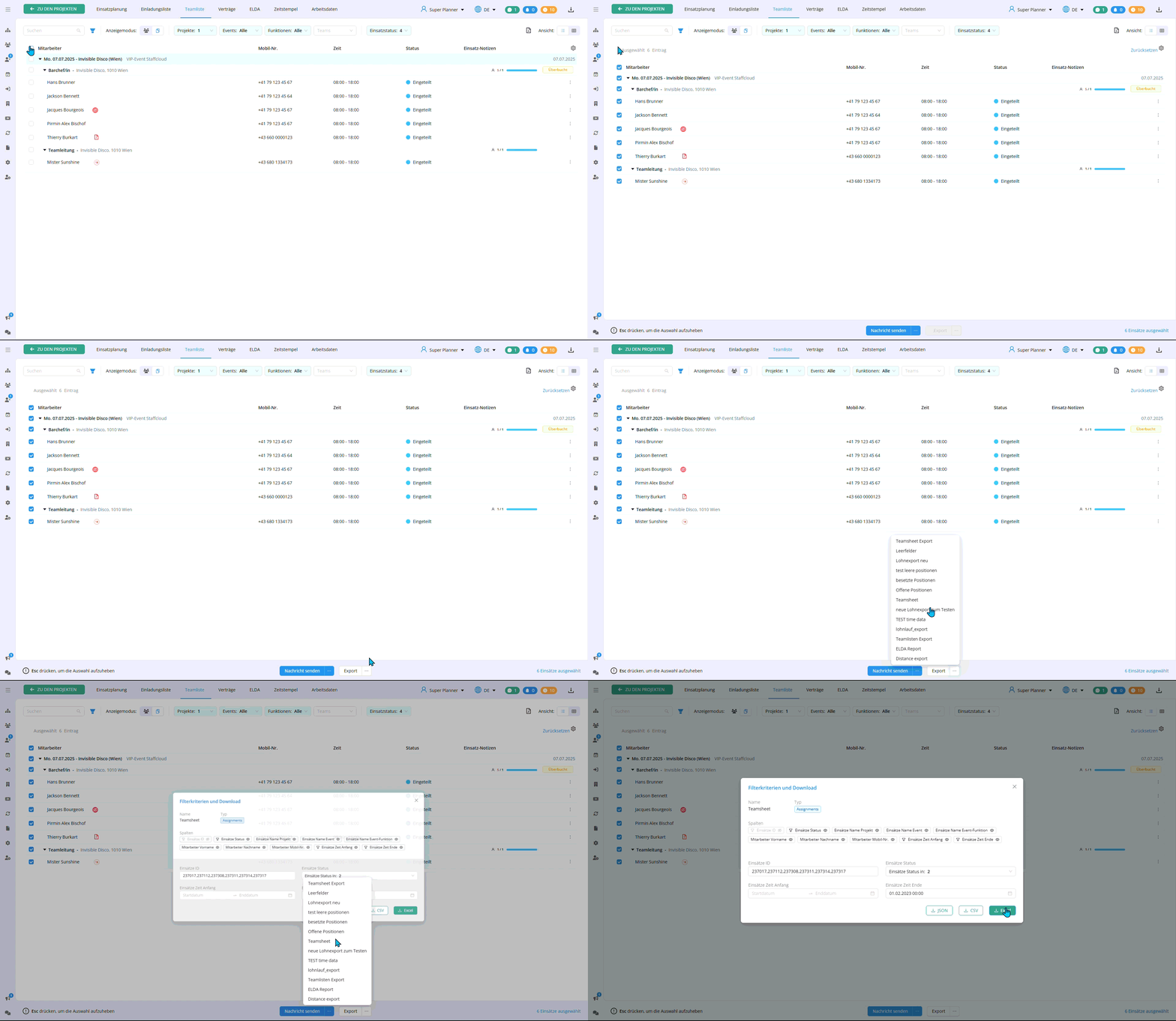
The Export Button
The Export button is divided into two parts:
Left side (text): Triggers the export of the selected data using the default template in XLS format
Right side (three dots): Opens a list of all available export templates for that context
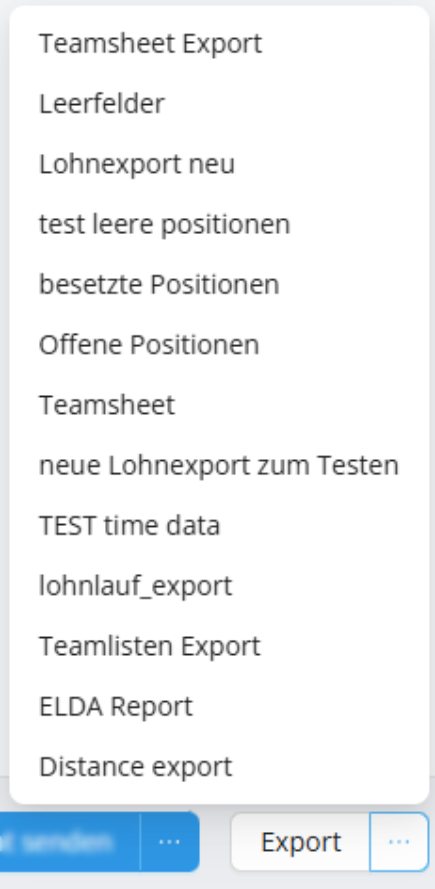
Select a template from the list to open the corresponding filter mask, where you can further refine the export settings if needed.
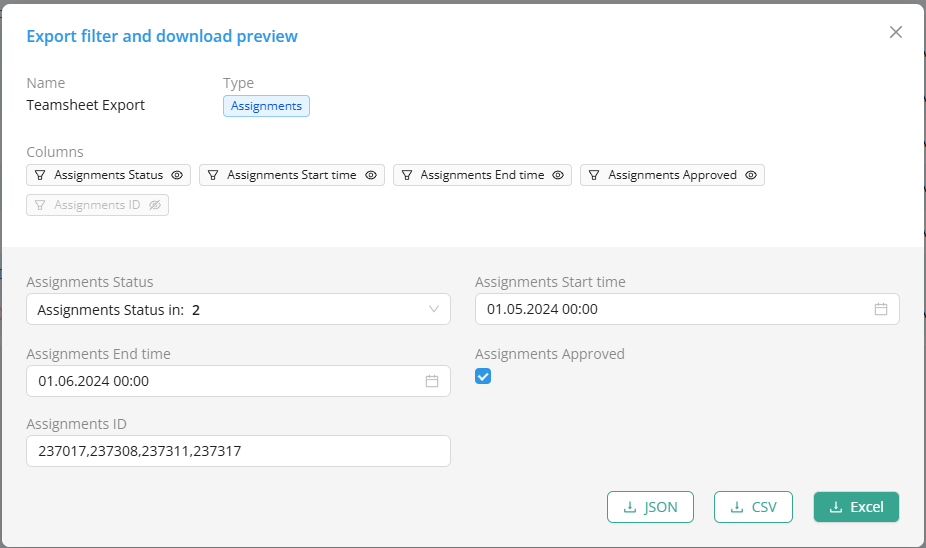
Besides the standard XLS format, the exports are also available in CSV or JSON formats.
Related articles
Creating Export Templates: Column Configuration
[WIP] Creating Export Templates: Search form Configuration
Was this article helpful?
That’s Great!
Thank you for your feedback
Sorry! We couldn't be helpful
Thank you for your feedback
Feedback sent
We appreciate your effort and will try to fix the article