In this article, I will learn what the column configurations "Grouping," "Sorting," and "Aggregation" mean and how to apply them to my export templates.
Important note on Exports in Staffcloud:
In Staffcloud, every user with the appropriate permissions can create, configure, and use their own export templates. This is a unique strength of our system and unlocks powerful possibilities – from simple lists to complex, highly structured data exports.
Because exports in Staffcloud are very powerful but also technically complex, the related guides and tutorials are intentionally detailed and technical. Please take your time, be patient with yourself, and follow the step-by-step learning path across multiple articles that we have prepared to build up your knowledge in a structured and sustainable way.
To fully understand and correctly use exports in Staffcloud, we recommend working through the following solution articles in the given order and trying out the examples in parallel in your own instance:
- [WIP] Recommended settings in Staffcloud and on your device (Excel)
- Exporting Staffcloud-Data
- Creating Export Templates
- Creating Export Templates: Column Configuration → you are here!
- [WIP] Creating Export Templates: Search form Configuration
- Direct Exports: Using Embedded Export Templates
- Direct Exports: Configure an Embedded Export Template
You can also find a “construction guide” for frequently requested export templates in the following area: DIY Tutorials for frequently requested Export Templates
Jump to section [TOC]
What does Column Configuration mean?
When exporting data, Staffcloud offers various options to make the output clearer, more structured, and more meaningful. The three core functions are Sorting, Grouping, and Aggregation. With their help, data can not only be ordered, but also condensed and evaluated – whether by creating a specific order, combining similar values, or calculating sums and averages. In the following examples, we will show step by step how these functions can be applied.
The column configurations are explained using an example. For this, 3 events were created within the same project:
- Event A with 3 employees (Marcel Dettling, Mary May, Mia Müller)
- Event B with 3 employees (Hans Brunner, Hans Egloff, Jackson Bennett)
- Event C with 2 employees (Jennifer König, Marcel Dobler)
The events take place between 09.09.2025 and 11.09.2025. The employees’ working hours have already been recorded and approved.
In our export template (Output format: Machine readable) we use the following fields:
- [Assignments] Start time - SEARCHABLE [date - in range (inclusive) - hide from results]
- [Assignments] Event Name - SEARCHABLE [text - includes]
- [Employees] First name
- [Employees] Last name
- [Work Time] Work Time excluding breaks
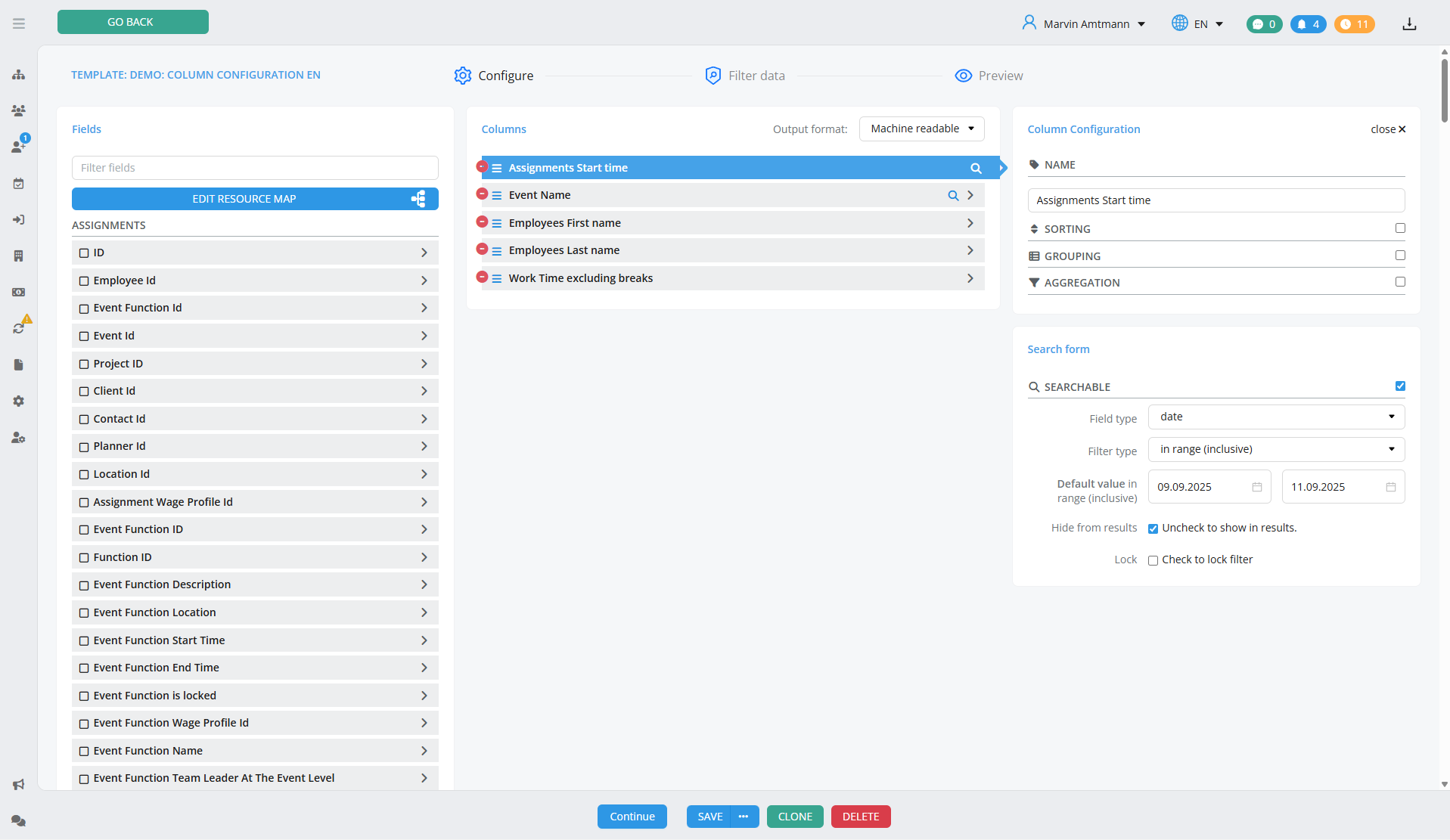
For all the following examples, the filters are set as follows:
- [Assignments] Start time: in range (inclusive) "09.09.2025" - "11.09.2025"
- [Assignments] Event Name: contains "Event"
Sorting
Sorting allows you to arrange exports in a clear order based on specific criteria. For example, data can be organized alphabetically, numerically, or in ascending/descending order. With the option of multiple sorting levels, information can be structured more precisely and compared more quickly – an important step to keep an overview even with large datasets.
Direction
The direction defines whether the data is sorted in ascending or descending order.
- Ascending: the lowest value appears at the top (e.g., A–Z / 0–9)
- Descending: the highest value appears at the top (e.g., Z–A / 9–0)
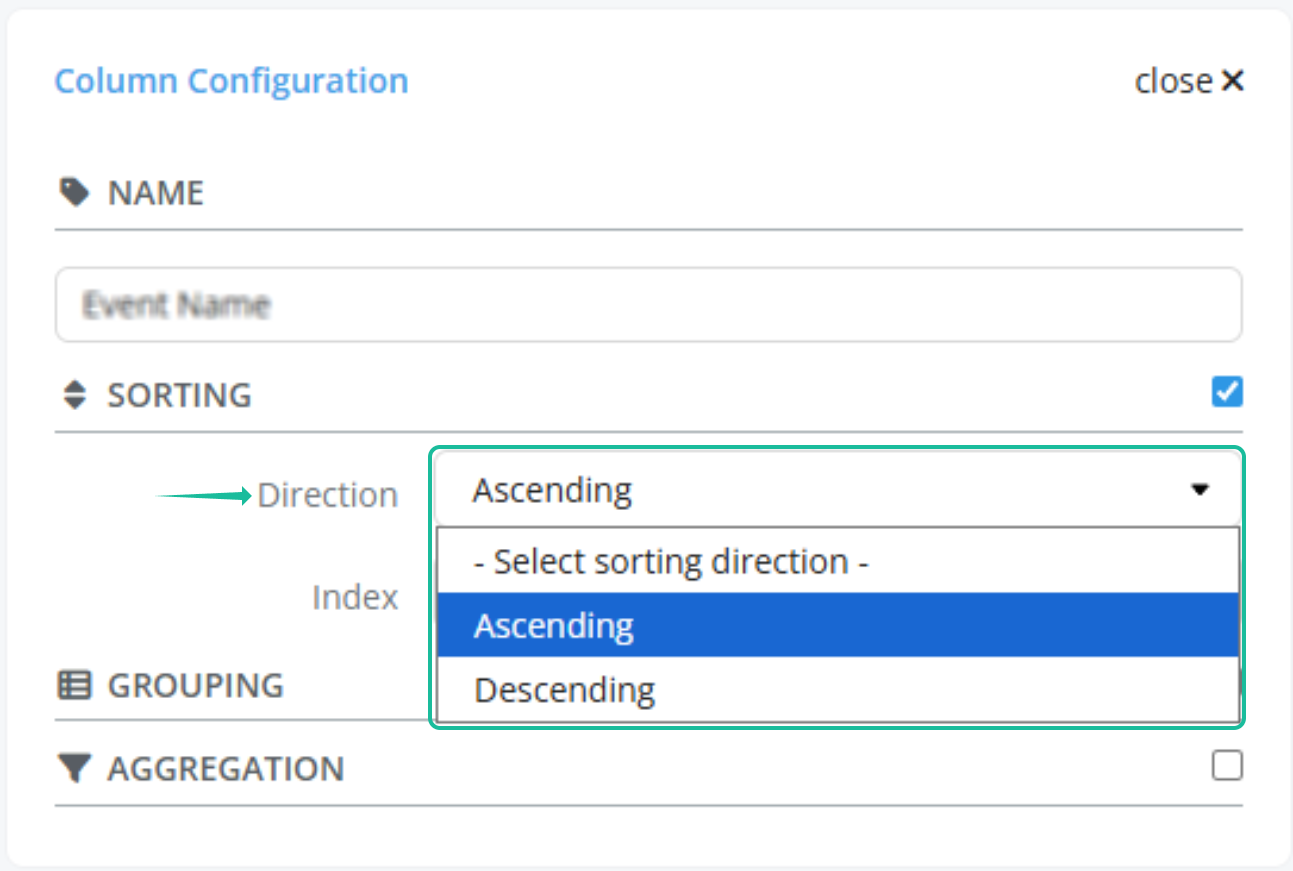
Index / Multi-level sorting
The index number defines in which columns the sorting should take place first, before the next columns are sorted. Staffcloud allows up to 10 sorting levels.
- 1 (Index): this column is sorted first
- 10 (Index): this column is sorted last
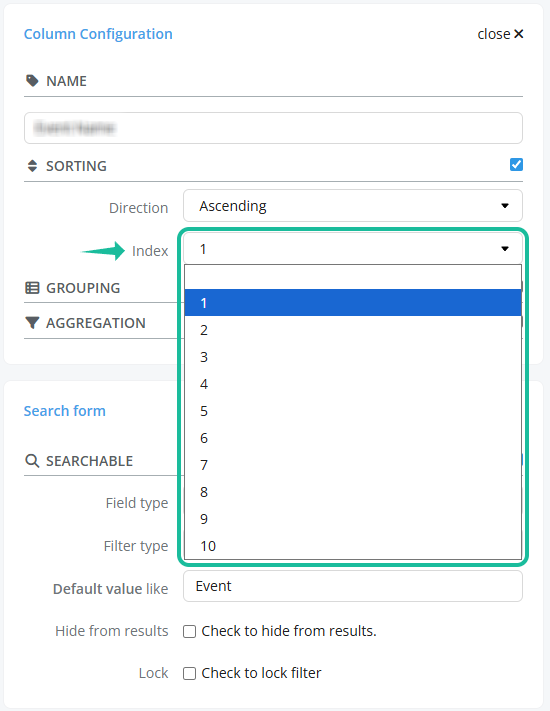
Example of sorting
In our example, we sort
- first by [Employees] First name (Index = 1)
- and then by [Employees] Last name (Index = 2).
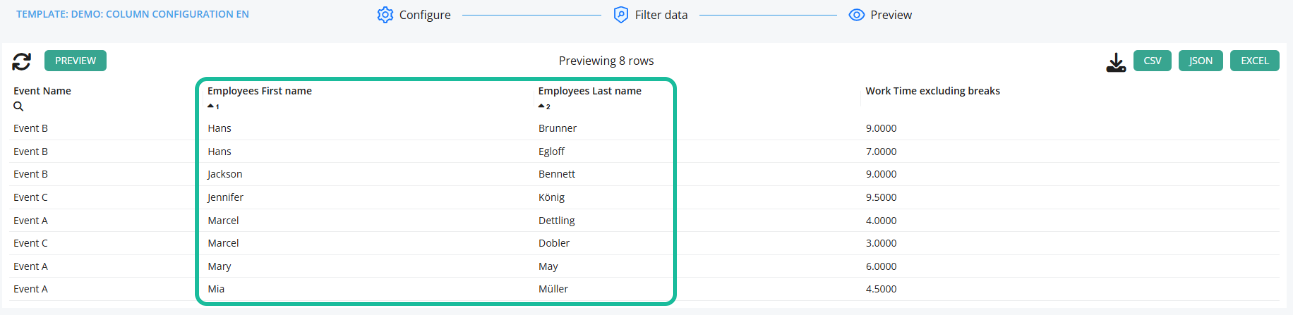
With the first names Hans and Marcel, you can clearly see that sorting is applied first to the first name and then to the last name.
Grouping
Grouping helps to organize data in the export in a meaningful way and makes it easier to analyze. Instead of listing all values one below the other, they can be combined based on specific criteria such as event names, employees, or wage types. This creates a clearer structure where similar information is automatically displayed side by side – an important step for quickly comparing and analyzing large datasets.
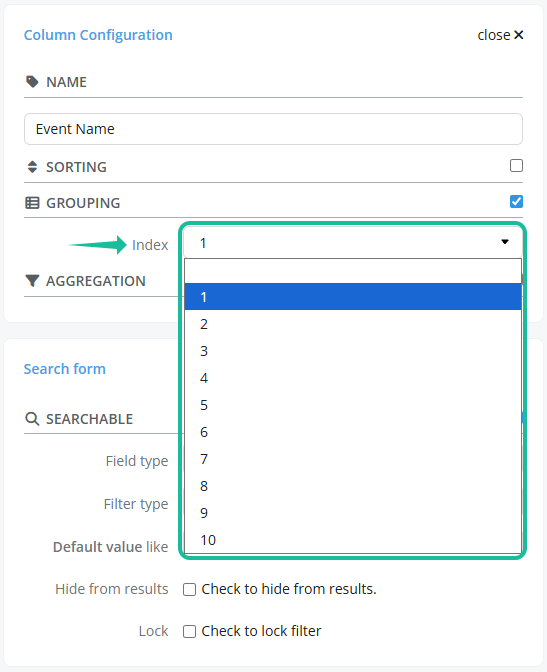
Index / Multi-level grouping
The index number defines which columns are grouped first before the next columns are processed. Just like multi-level sorting, Staffcloud allows up to 10 grouping levels.
- 1 (Index): this column is grouped first
- 10 (Index): this column is grouped last
Example of grouping
In our example, we group by the field [Assignments] Event name.

As a result, the export is grouped by Event A, Event B, and Event C. The values are separated by commas.
Aggregation (Glossary)
Aggregations make it possible to present data in an export in a clearer and more meaningful way. Instead of simply listing grouped values side by side, they can be combined, counted, or calculated using different operations. For example, you can create sums, calculate averages, or merge multiple entries into a single cell. These functions help to condense information directly within the export and make it easier to evaluate.
To apply these aggregations, at least one column in the export must be grouped. Then, select the desired "Aggregation" in the column configuration to apply it to the grouped values within a cell.
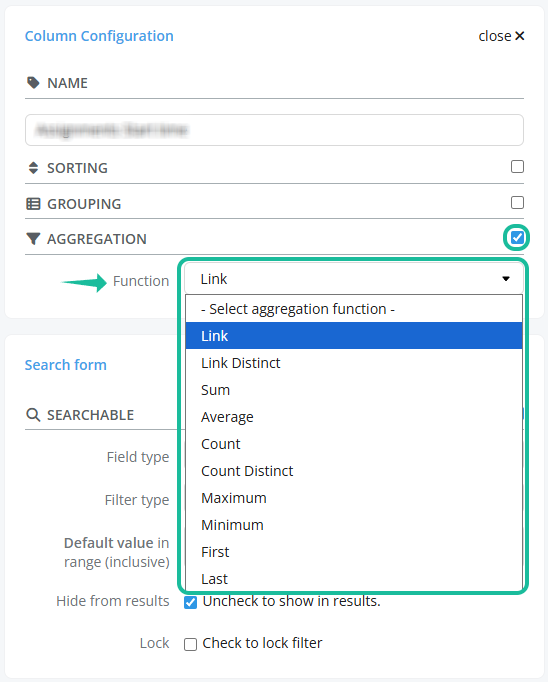
In the following examples, we use the same export template described above with the specified default settings. As a first step, the column [Assignments] Event name is grouped.
| Aggregation | Description |
|---|---|
| Link (Aggregation) | Concatenates grouped values in a cell, separated by commas. Example: Grouping: [Assignments] Event Name Aggregation "Link": [Employees] First Name
Note: Once a column is grouped, all other columns are automatically concatenated. |
| Link Distinct (Aggregation) | Concatenates only unique values in a grouped cell, separated by commas. Example: Grouping: [Assignments] Event Name Aggregation "Link Distinct": [Employees] First Name
Difference to “Link”: If a name appears more than once (e.g., Hans in Event B), it will only be listed once. |
| Sum (Aggregation) | Adds up numeric values within a grouped cell. Example with comparison: Grouping: [Assignments] Event Name Aggregation "Link": [Work Time] Work Time excluding breaks
Grouping: [Assignments] Event Name Aggregation "Sum": [Work Time] Work Time excluding breaks
|
| Average (Aggregation) | Calculates the arithmetic mean of numeric values in a grouped cell. Example: Grouping: [Assignments] Event Name Aggregation "Average": [Work Time] Work Time excluding breaks
Outputs the average working time per row. |
| Count (Aggregation) | Counts the number of values in a grouped cell. Example with comparison: Grouping: [Assignments] Event Name Aggregation "Link": [Employees] First Name
Grouping: [Assignments] Event Name Aggregation "Count": [Employees] First Name
Outputs the count of values in the column [Employees] First name. In line 2 (for Event B) with "Hans", "Hans" and "Jackson" → result = |
| Count Distinct (Aggregation) | Counts only unique values in a grouped cell. (see also "Count") Example: Grouping: [Assignments] Event Name Aggregation "Count Distinct": [Employees] First Name
Outputs the count of distinct values in the column [Employees] First name. In line 2 (for Event B) with "Hans", "Hans" and "Jackson" → result = |
| Maximum (Aggregation) | Returns the highest numeric value in a grouped cell. Grouping: [Assignments] Event Name Aggregation "Link": [Work Time] Work Time excluding breaks
Grouping: [Assignments] Event Name Aggregation "Maximum": [Work Time] Work Time excluding breaks
Outputs only the highest numeric value (number). |
| Minimum (Aggregation) | Returns the lowest numeric value in a grouped cell. (see also "Maximum") Example: Grouping: [Assignments] Event Name Aggregation "Minimum": [Work Time] Work Time excluding breaks
Outputs only the lowest numeric value (number). |
| First (Aggregation) | Returns the first value in a grouped cell. Example with comparison: Grouping: [Assignments] Event Name Aggregation "Link": [Employees] First Name
Grouping: [Assignments] Event Name Aggregation "First": [Employees] First Name
Outputs only the first value of the cell. |
| Last (Aggregation) | Returns the last value in a grouped cell. (see also "First") Example: Grouping: [Assignments] Event Name Aggregation "Last": [Employees] First Name
Outputs only the last value of the cell. |














⚠️ Note: Using multiple aggregations at the same time can slow down the export and may cause a timeout. In such cases, we recommend performing further calculations directly in Excel.
Related Articles:
[WIP] Creating Export Templates: Search form Configuration
Direct Exports: Using Embedded Export Templates
Was this article helpful?
That’s Great!
Thank you for your feedback
Sorry! We couldn't be helpful
Thank you for your feedback
Feedback sent
We appreciate your effort and will try to fix the article