In this article, I will learn how to find, filter, run, and download export templates in Staffcloud – including overview and search functionImportant note on Exports in Staffcloud:
In Staffcloud, every user with the appropriate permissions can create, configure, and use their own export templates. This is a unique strength of our system and unlocks powerful possibilities – from simple lists to complex, highly structured data exports.
Because exports in Staffcloud are very powerful but also technically complex, the related guides and tutorials are intentionally detailed and technical. Please take your time, be patient with yourself, and follow the step-by-step learning path across multiple articles that we have prepared to build up your knowledge in a structured and sustainable way.
To fully understand and correctly use exports in Staffcloud, we recommend working through the following solution articles in the given order and trying out the examples in parallel in your own instance:
- [WIP] Recommended settings in Staffcloud and on your device (Excel)
- Exporting Staffcloud-Data → you are here!
- Creating Export Templates
- Creating Export Templates: Column Configuration
- [WIP] Creating Export Templates: Search form Configuration
- Direct Exports: Using Embedded Export Templates
- Direct Exports: Configure an Embedded Export Template
You can also find a “construction guide” for frequently requested export templates in the following area: DIY Tutorials for frequently requested Export Templates
Jump to section [TOC]
Export Overview
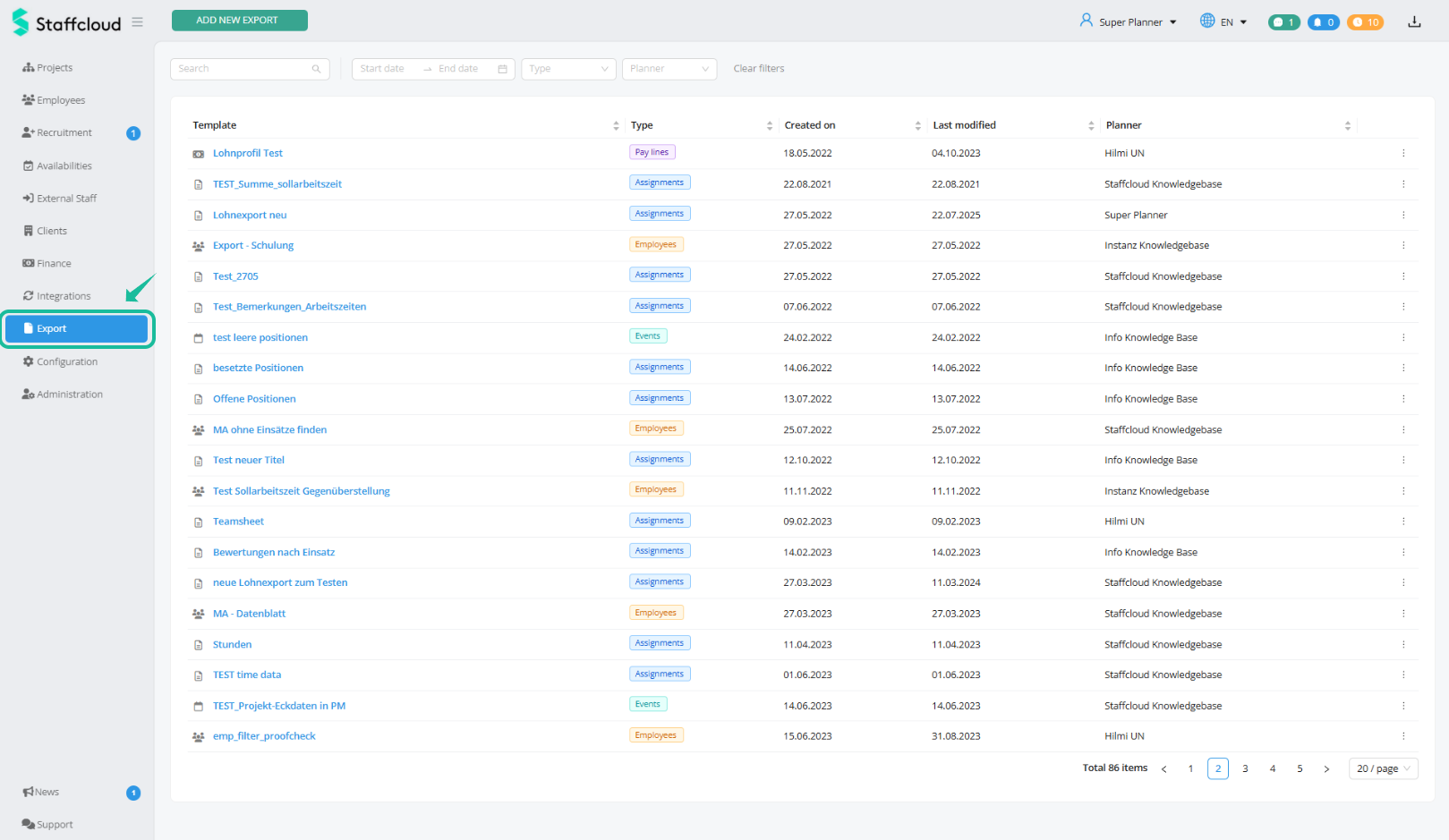
On the start page of the Export section, you’ll find all templates created by administrators. These can be generated and downloaded directly from the export view – both actions happen in a single step.
Export Template Details
In the overview, you can immediately see:
the name of the export template
the associated export type
the creation date
the last modified date
and the planner who made the last change
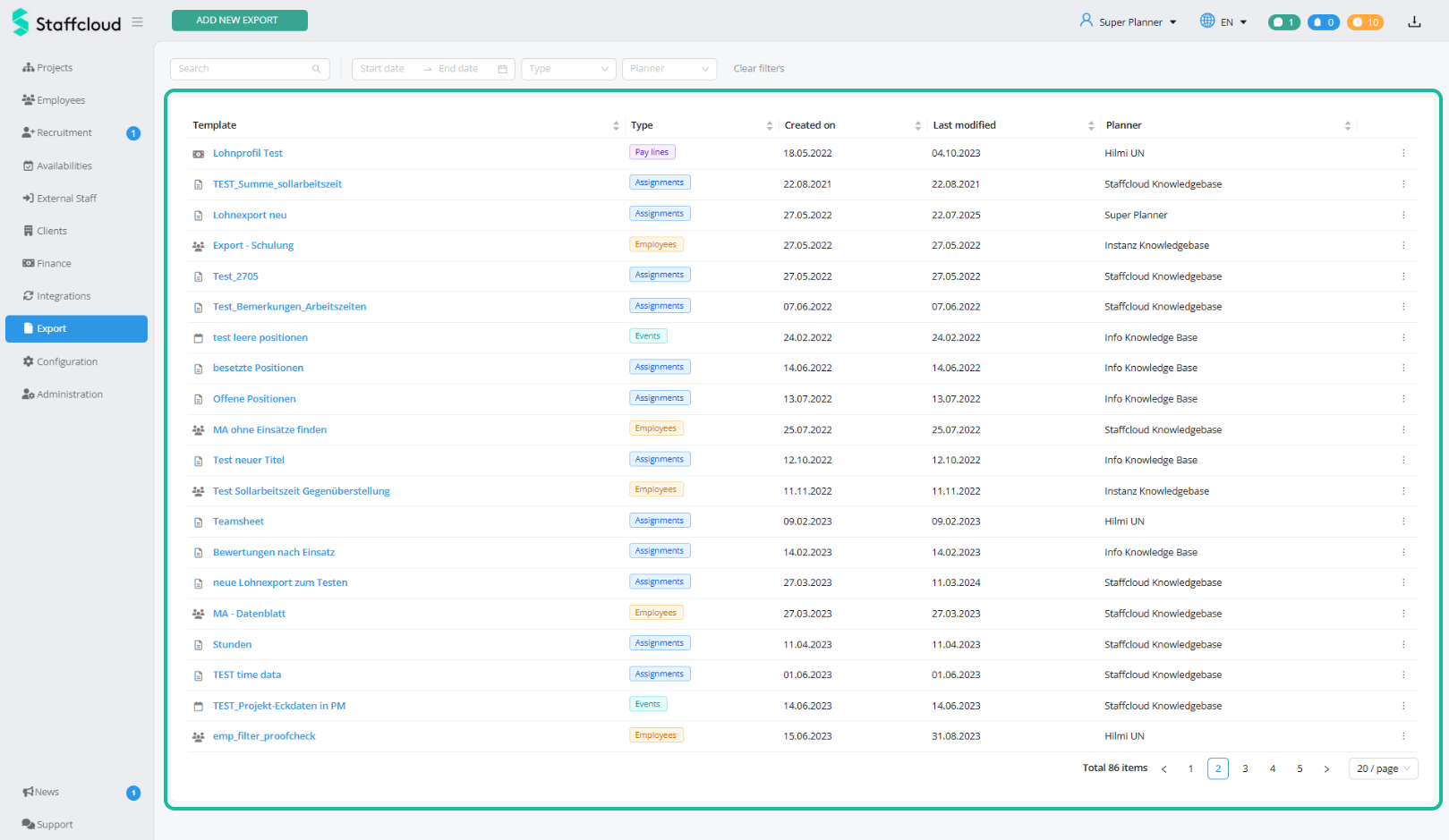
Search & Filter Function in the Export Overview
Use the search bar at the top to quickly find specific templates by filtering for:
Name
Date ranges when an export template was created
Export types
or responsible planners
Even with many templates, this helps you find the right one quickly.

Starting an Export
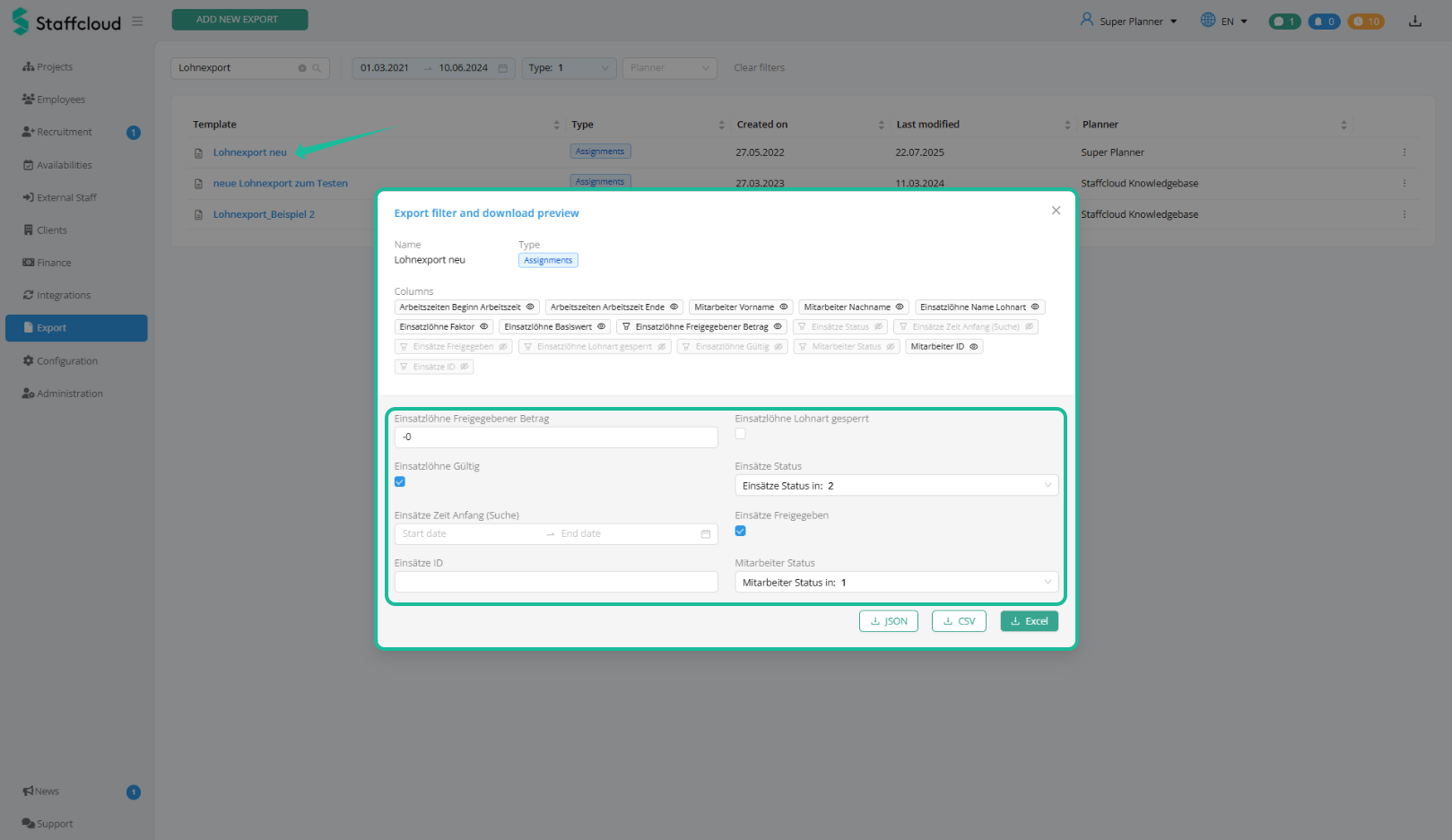
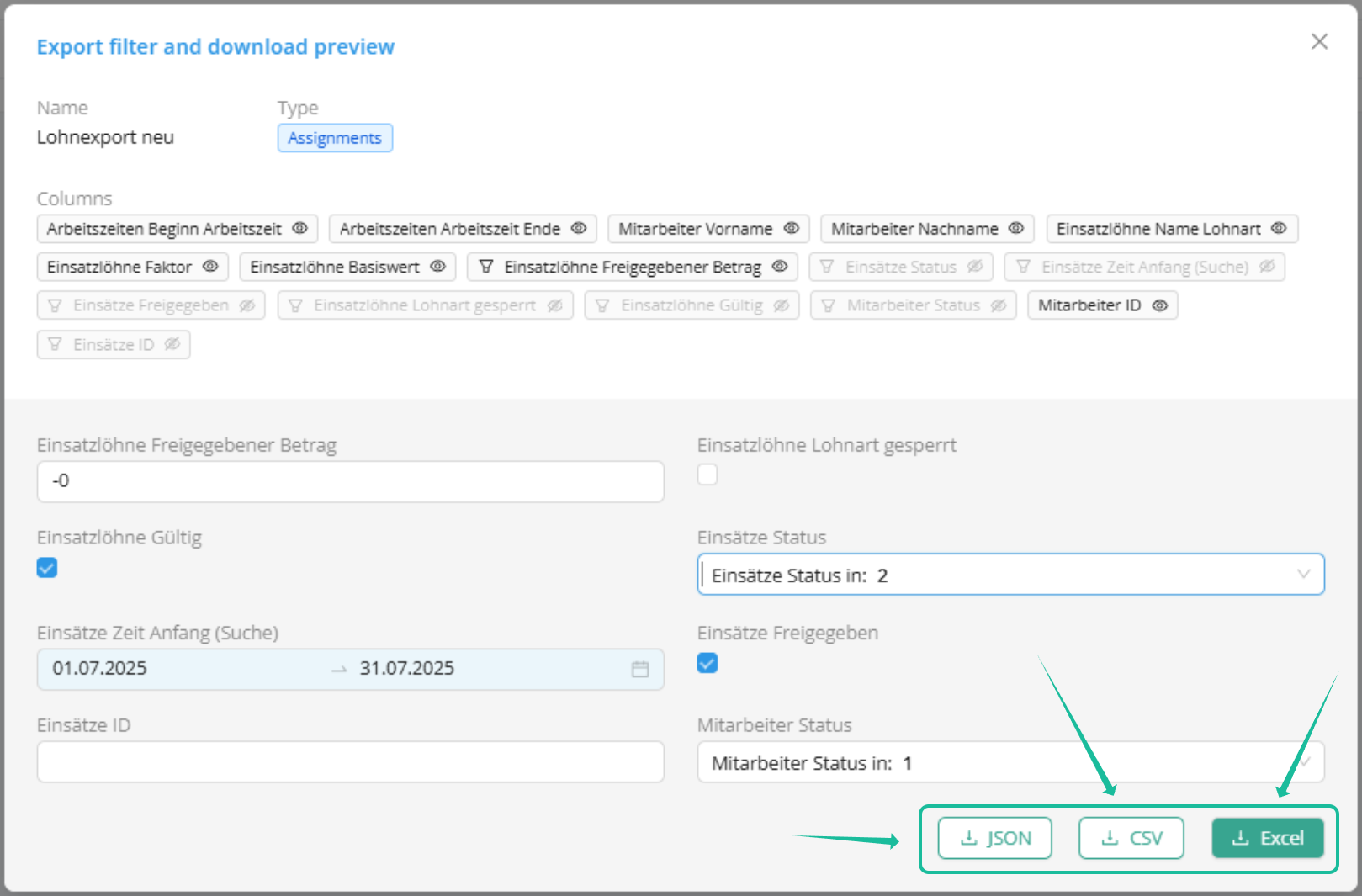
Clicking on a template opens an Overview of the used data fields (columns) and the associated export filter options.
- Some datafields (colums) are hidden by default. They are greyed out and have a crossed-eye-symbol next to them. Clicking on a datafield shows or hides the column in the current Export.
- Also you can set filters to narrow down the export efficiently. The more precise the filters, the more relevant and structured the export result.
The Export Template will not be changed by your changes in this Pop Up - when you use this Template the next time, the default configuration will be applied again.
Filter Options and Locked Filters
Some filter options may be locked by administrators. This protects important settings and ensures data consistency.
Example: For a payroll export, it’s essential to define a start date and often to restrict output to approved or valid payroll entries only.
These settings should not be changed to avoid errors. The “lock filter” feature prevents accidental changes.
File Formats
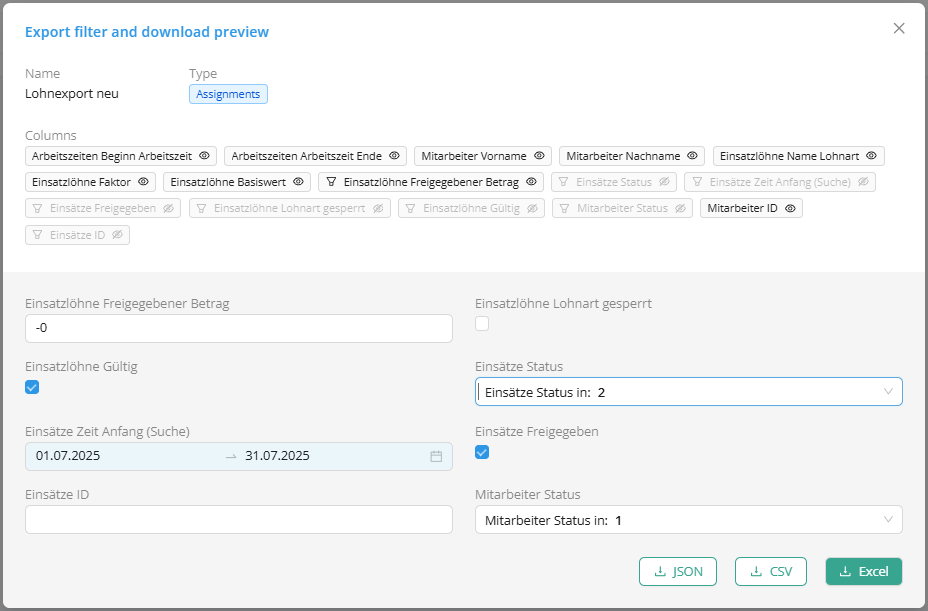
Once the filters are set (or confirmed), the export can be run without additional search steps – in your preferred format: XLS, CSV, or JSON.
Downloading an Export
After triggering an export, you have multiple ways to download the generated file. Whether you download it immediately via the pop-up or access it later from your export history – the process is simple and streamlined.
- Once you click the XLS, CSV, or JSON button, a pop-up will appear to confirm that the export is being prepared.
- When the export is ready, the pop-up will update and display a blue download link. Click this link to download your file.
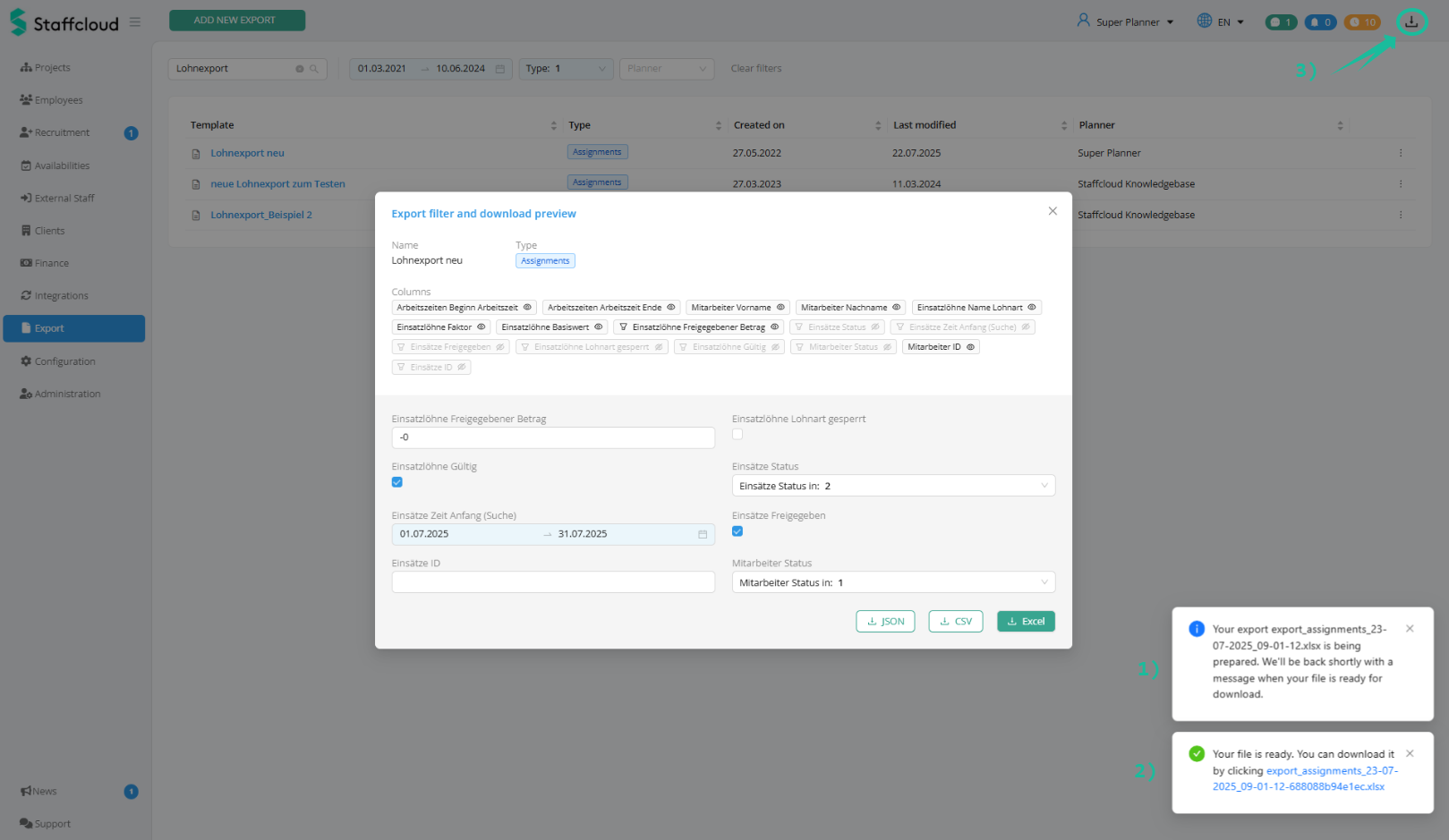
- By clicking the Download button in the top-right corner of the page, you can access all recently requested exports from your planner account. Here, you can also see their current status and download any completed exports directly.

Related articles:
Creating Export Templates: Column Configuration
[WIP] Creating Export Templates: Search form Configuration
Direct Exports: Using Embedded Export Templates
Was this article helpful?
That’s Great!
Thank you for your feedback
Sorry! We couldn't be helpful
Thank you for your feedback
Feedback sent
We appreciate your effort and will try to fix the article