In this article, you will learn:
- how to create teams
- how to assign employees to teams
- how to link teams with clients
- how to use and filter teams in planning
General
With the Teams feature, you can group employees into teams, for example by:
- branch or location
- department
- deployment region
- skills
- client
In addition, teams can be linked to clients. Teams can be used as a filter in planning, in the availabilities area, and in the employee search. This allows you to quickly filter by one or several teams and keep your planning structured and clear.
Teams: Overview
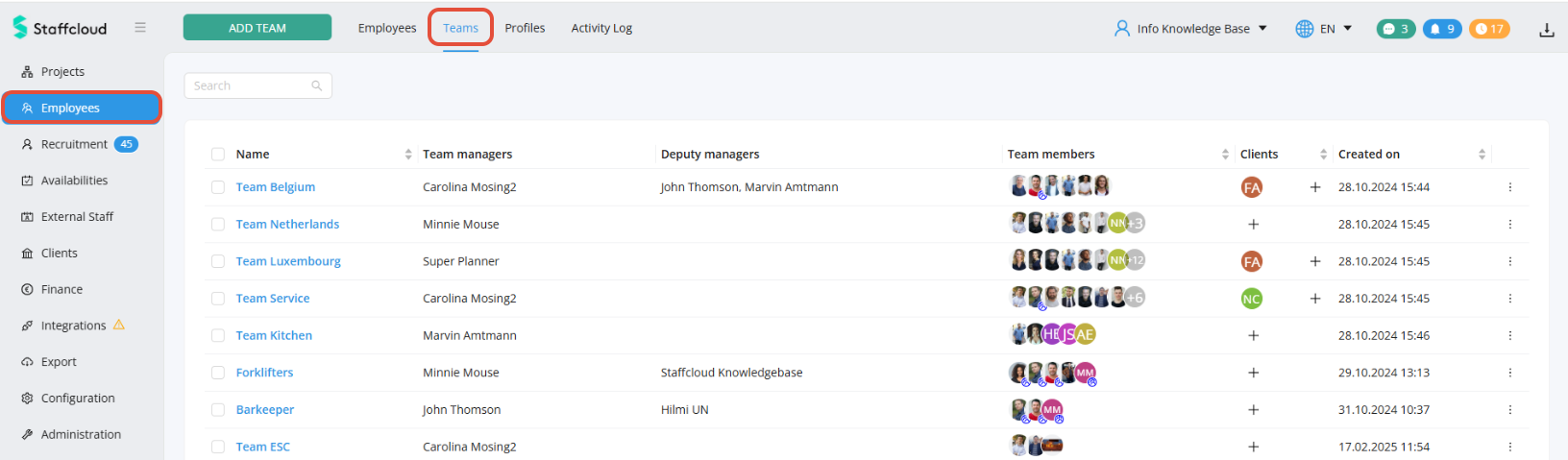
In the Employees section, under the Teams tab, you will find an overview of all teams in your instance.
By clicking on a team name, all members of that team are displayed directly.
The overview also shows:
- the team managers
- the team members
- the linked clients
- the team creation date
Creating teams
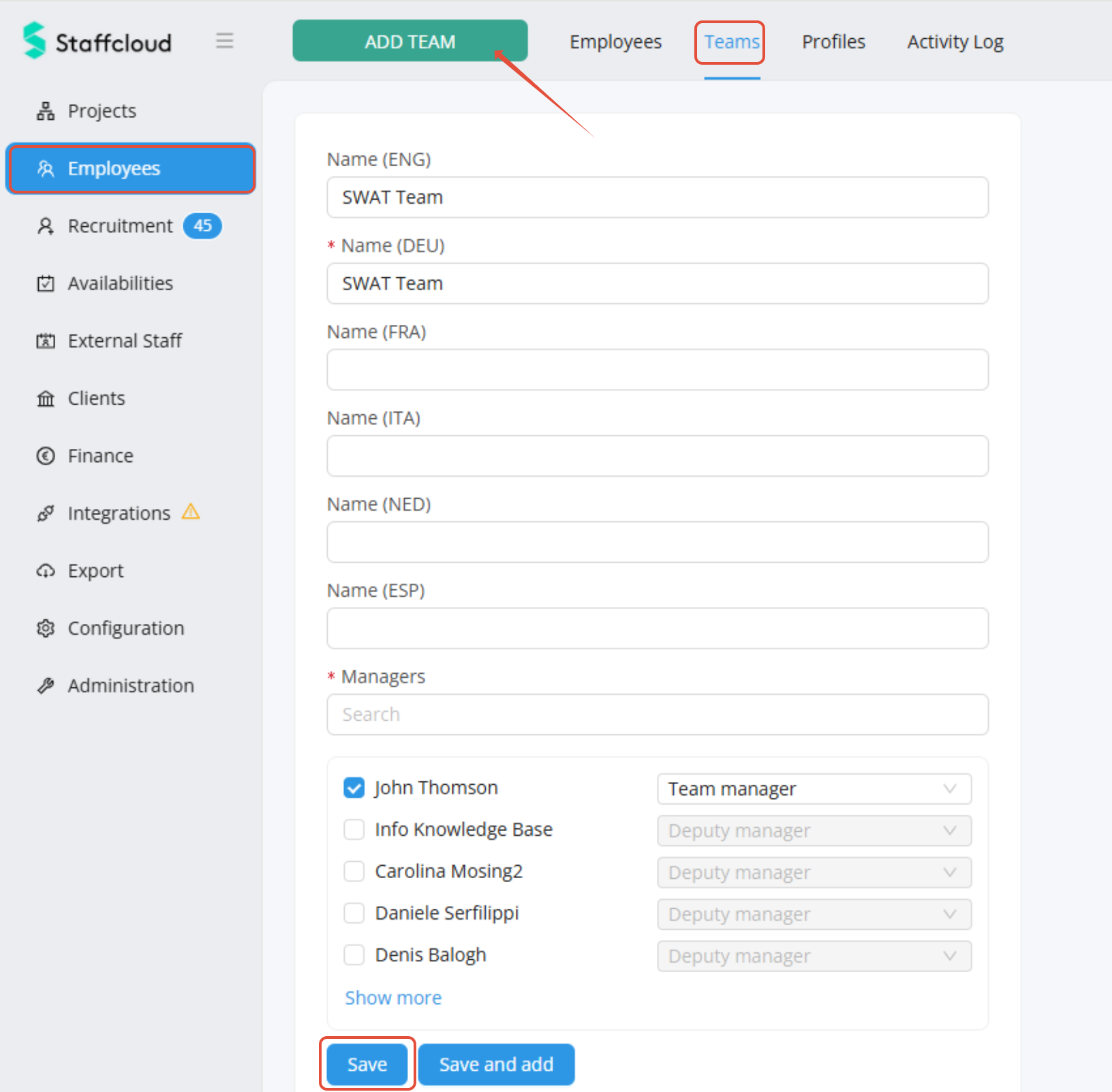
To create a new team:
- Go to Employees > Teams.
- Click “Add team”.
- Enter a name for the team.
- Assign one or more planners as team managers.
- Click Save.
Assigning employees to teams
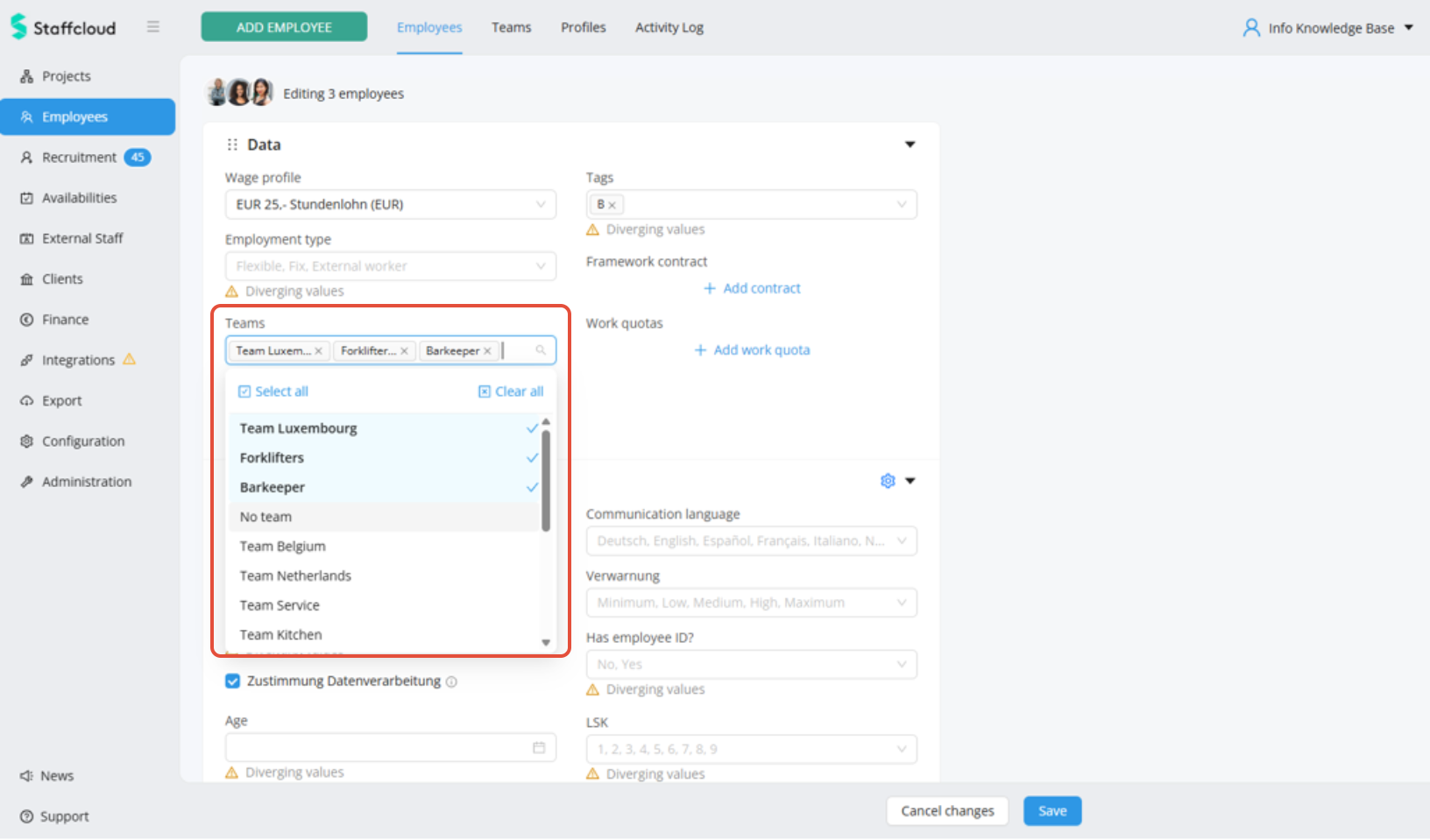
To assign one or more employees to one or more teams:
- Open the Employees tab.
- Select one or more employees.
- Open the edit view.
- Choose the required team or teams.
- Save your changes.
An employee can belong to multiple teams at the same time or to no team at all.
Linking teams with clients
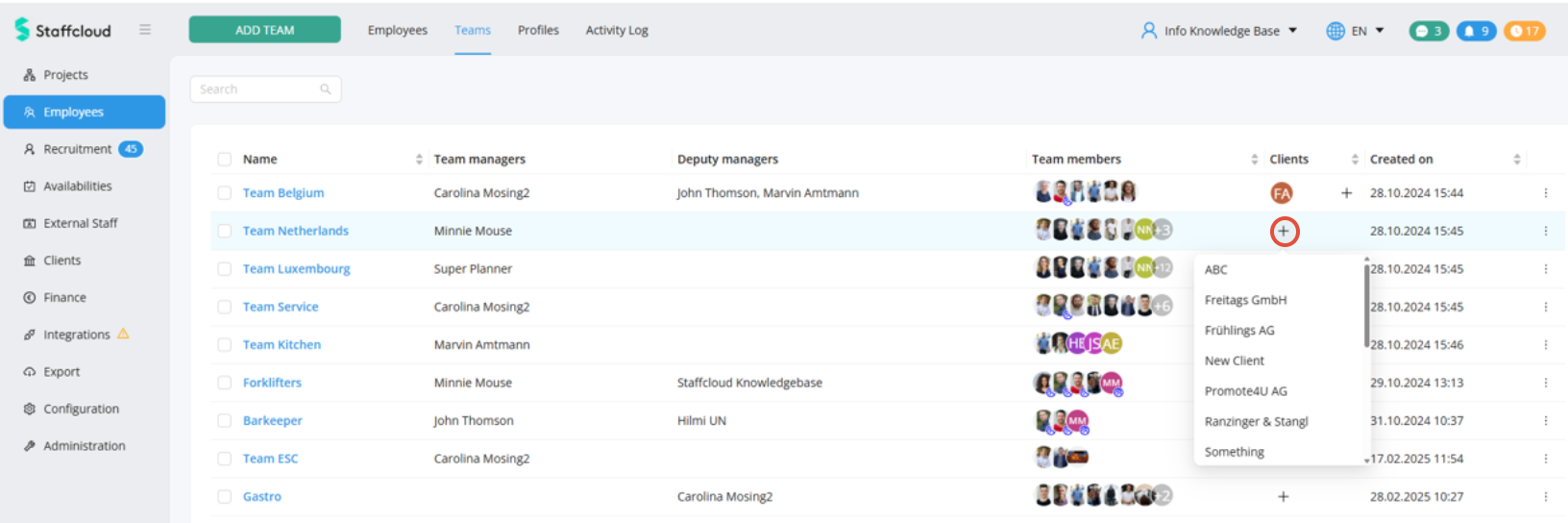
You can link teams with one or more clients.
There are two ways to do this:
Option 1: via the team overview
Use the “+” icon in the team overview to link a client to a team:
Option 2: via the client area
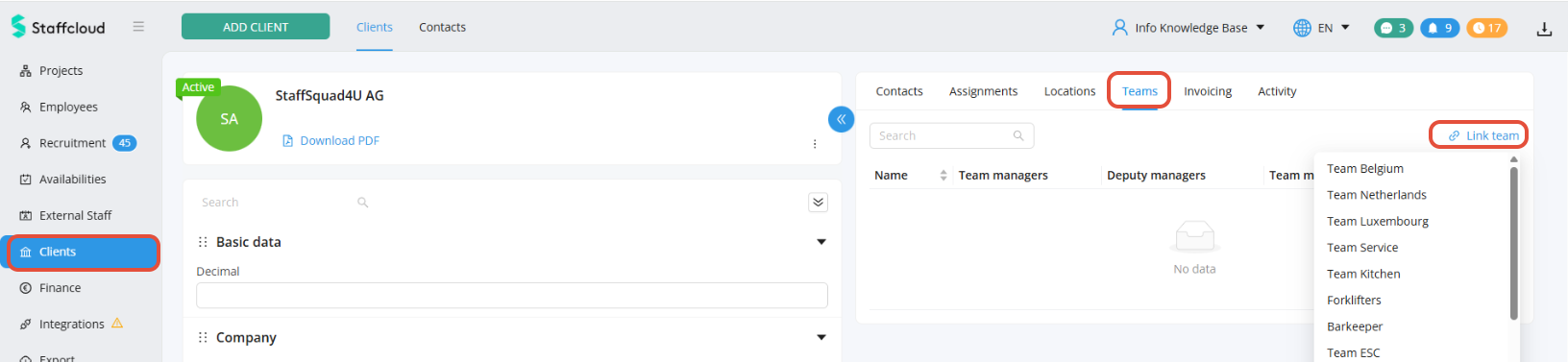
Alternatively, go to the Clients section, select a client, and link it to one or more teams:
Teams in project creation and invitations
You can already define teams during project creation.
If you select a project client that is already linked to one or more teams, these teams will be selected automatically.
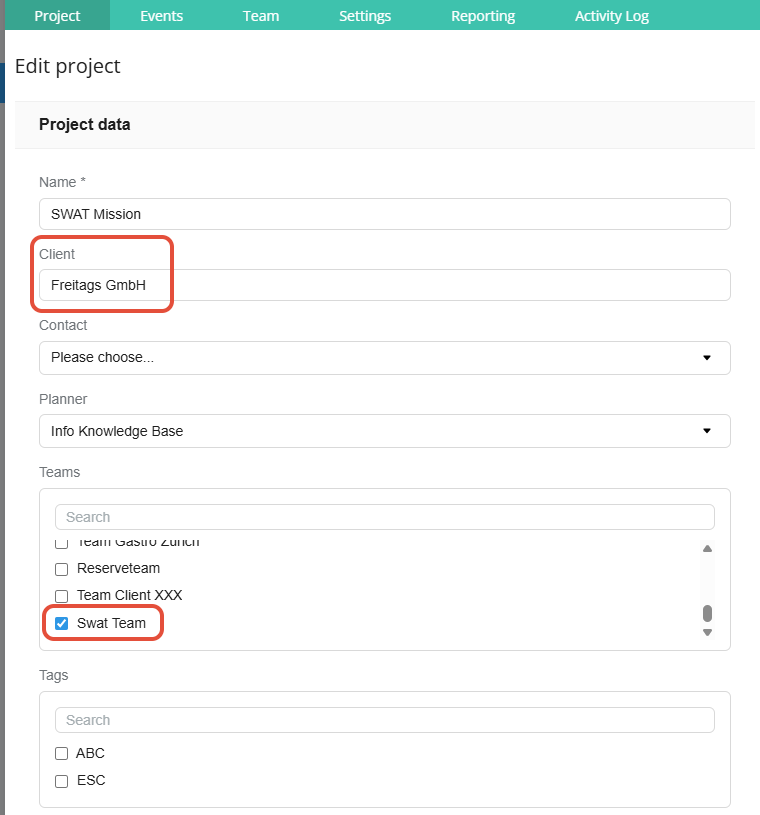
After creating the project, you have two options:
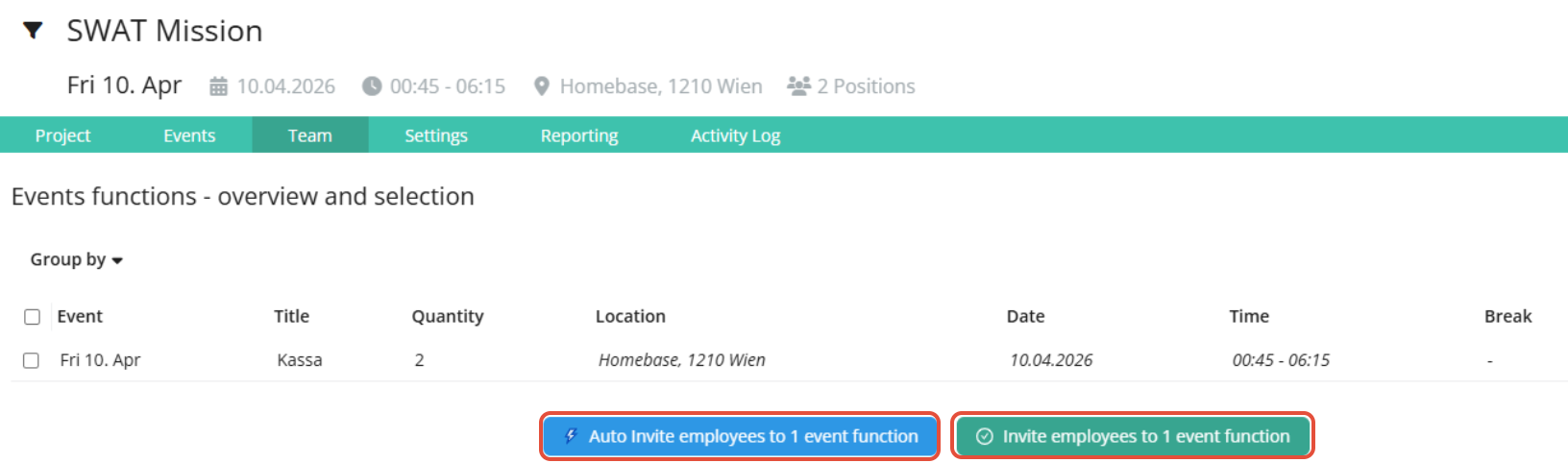
Auto Invite employees
If you choose “Auto Invite employees to event function", all qualified and available team members will be invited directly.
Activate and go to the invitation list
If you choose “Invite employees to event function”, you will be taken to the invitation list as usual. The correct team filter will already be applied there.

Team filter in planning
Filtering by teams makes planning easier, especially when specific planners are responsible for specific teams.
A team filter is available in all areas of planning, such as:
- Planning
- Invitation list
- Team list
When using this filter, only employees belonging to the selected teams will be displayed.
The team filter is cached. This means the selected filter remains saved for the user until it is changed manually or the browser cache is cleared.
In calendar planning, employees are displayed grouped by team. This makes it easier to keep an overview, especially when working with larger employee pools.
Related articles