There are three different automation options available in Staffcloud to support your scheduling process: Auto-Invite, Auto-Assign and Auto-Close. This article explains how you can use these features to automate your scheduling workflows. Table of Contents
- Automated Invitations (Auto-Invite)
- Automated Assignments (Auto-Assign)
- Automated Closing of Functions (Auto-Close)
Automated Invitations (Auto-Invite)
Once functions have been created—either during the creation of a new project or by adding functions later—you have two options:
Manual approach:
Activate the function and use the invitation list to manually search and invite suitable employees.Automated approach:
Use automated invitations to let the system select and invite suitable employees automatically.
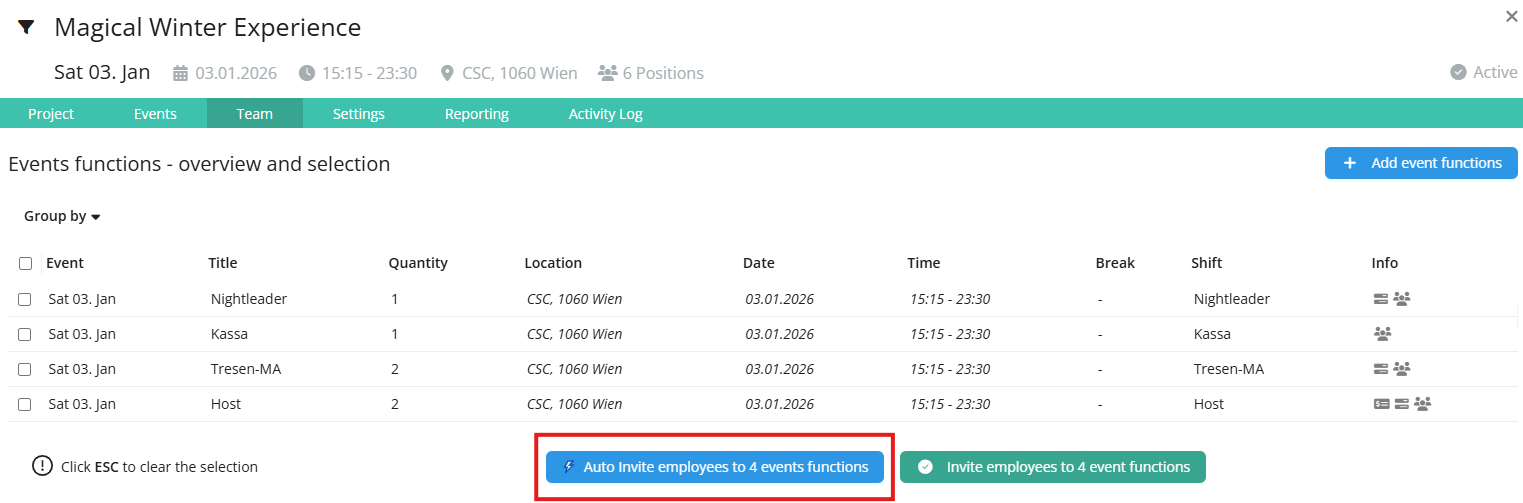
How automated invitations work
For automated invitations, the three familiar special filters are applied with the setting “mandatory”:
- Qualifications: Mandatory
- Availabilities: Mandatory
- Conflicts: Mandatory
Automated invitations are only sent to employees who:
- have the required qualifications,
- are not assigned to another function at the same time, and
- have no absences recorded in their calendar for the scheduled period.
After clicking “Auto-Invite employees”, the planner is redirected to the project overview.
As soon as the automated invitations have been processed successfully in the background, a notification appears on the right side of the screen, informing the planner how many employees have been invited.
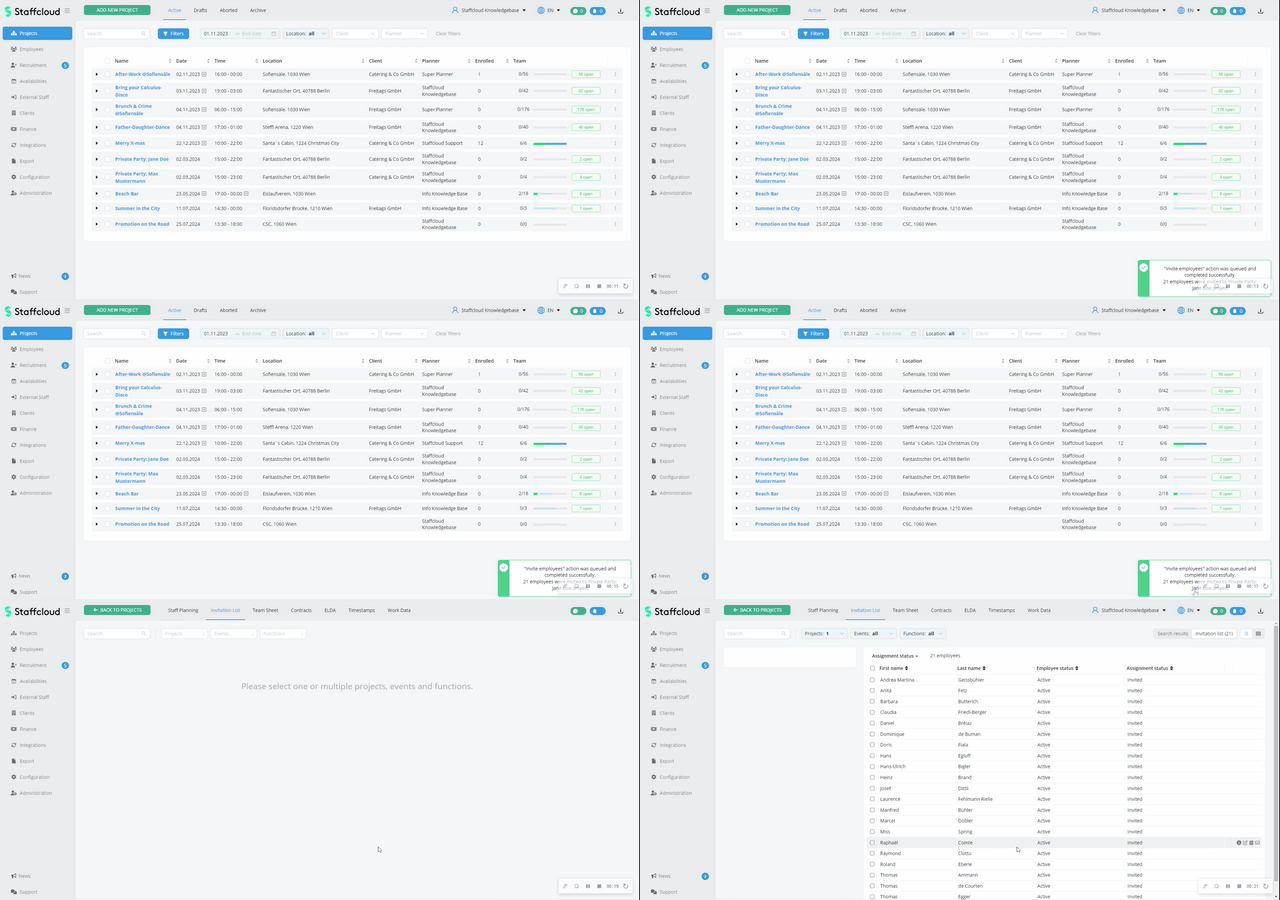
The invitation list then displays the invited employees as usual.
Automated Assignments (Auto-Assign)
Activating Auto-Assign
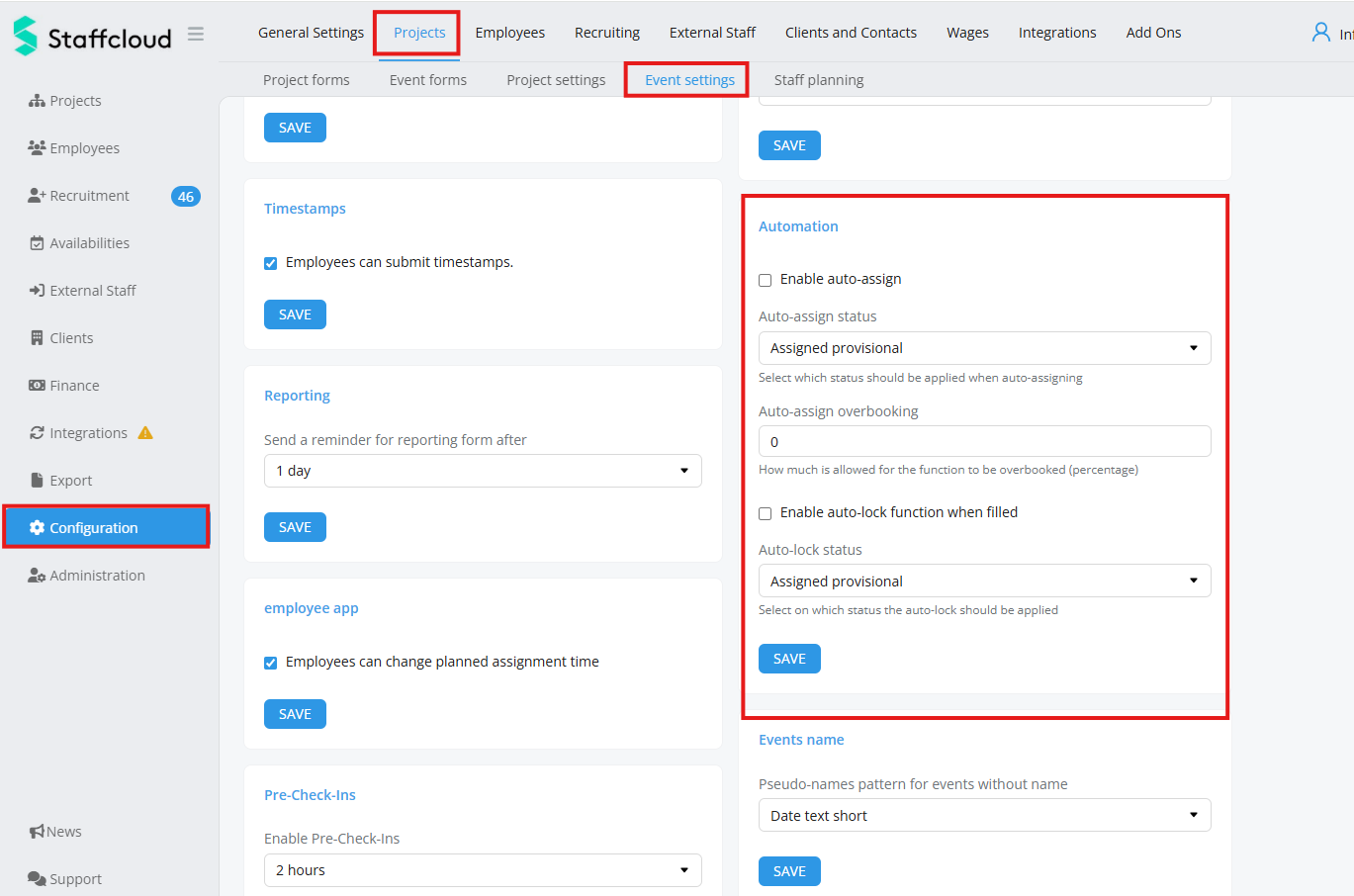
The activation or adjustment of the automated assignment settings is possible in two places:
Globally:
Configuration → Projects → Event Settings
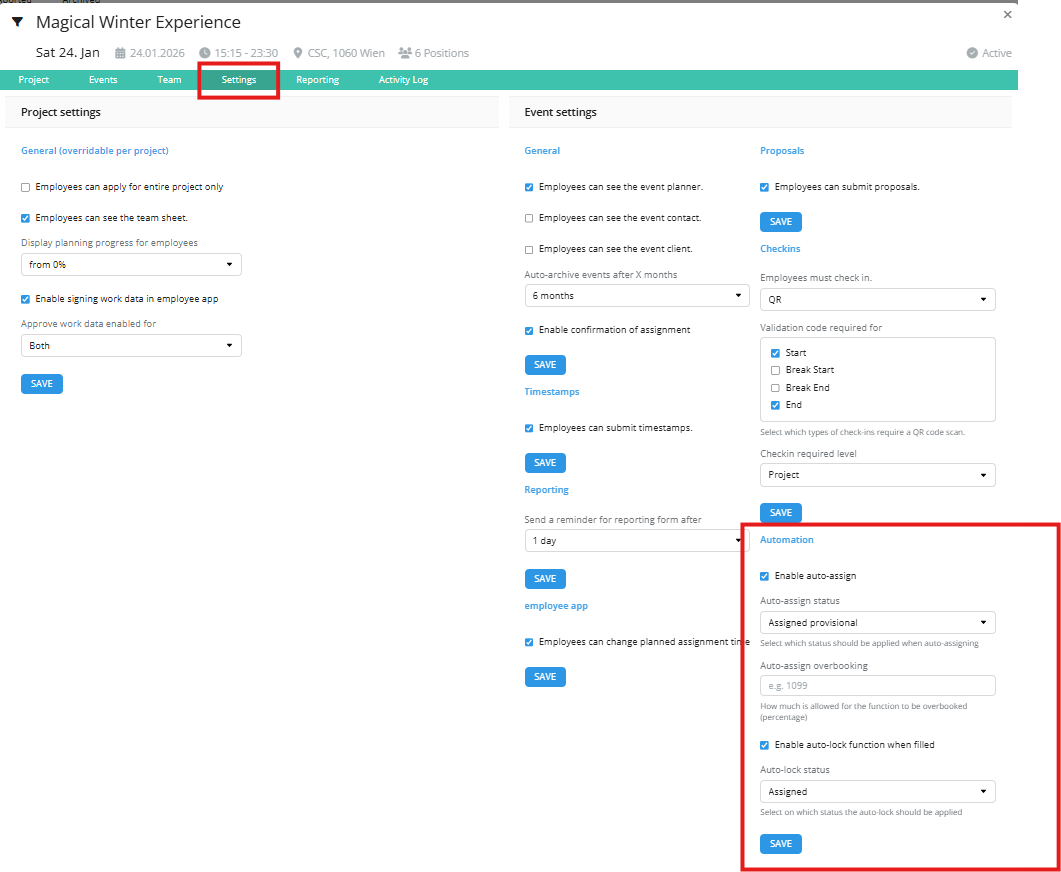
Per event:
Directly within the event settings for selected events
How Auto-Assign works
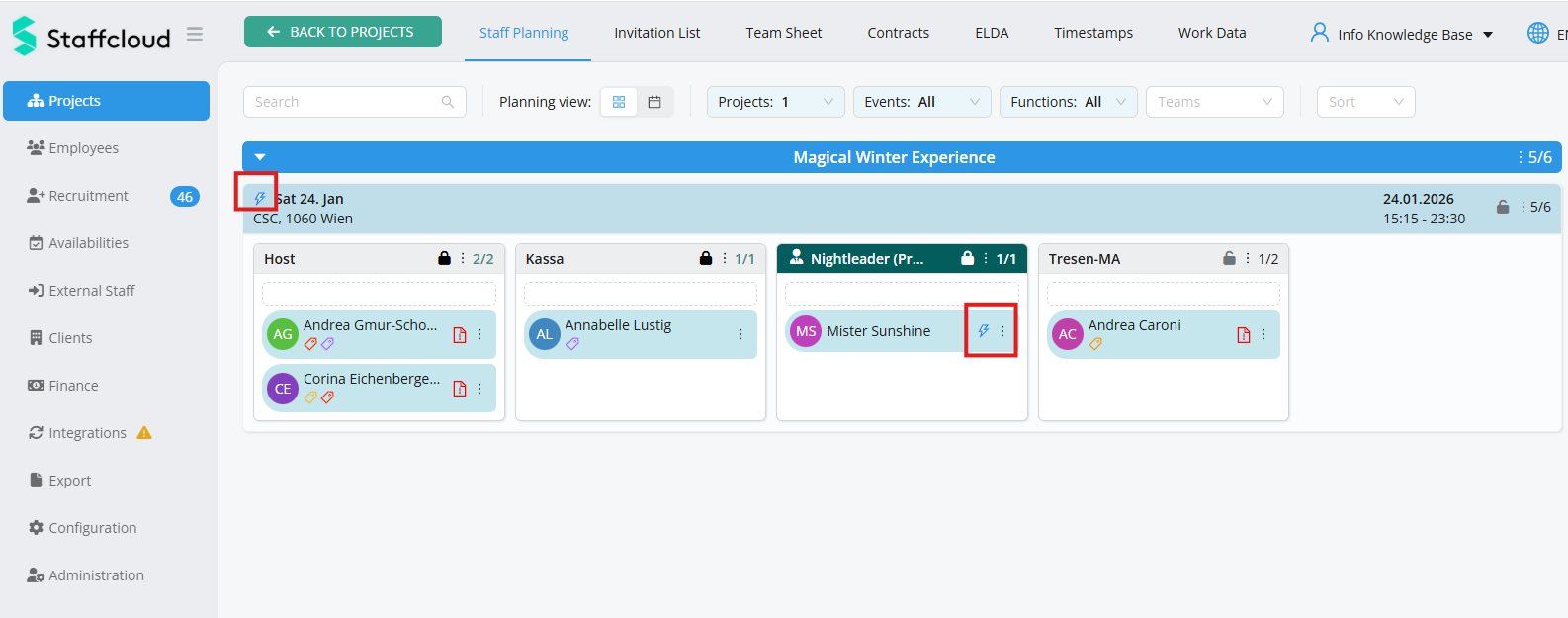
When Auto-Assign is enabled, this is indicated in the scheduling view by a blue lightning icon.
The icon appears:
on the function itself, and
next to employees who have been assigned automatically
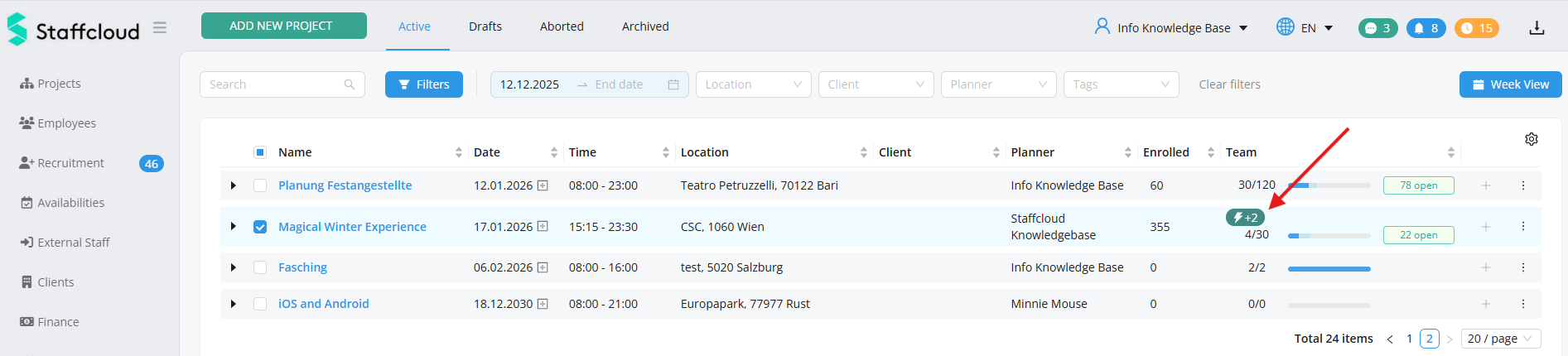
The project overview also displays the lightning icon for recently automatically assigned employees
Assignment logic
Employees who apply for a function are automatically assigned if:
capacity is still available, and
there is no time conflict with another assignment
the employee is qualified for the function
Assignments can be set as:
fixed (blue), or
provisional (grey)
This behavior can be configured both globally and per event.
First-Come-First-Serve principle
Automated assignment follows the first-come-first-serve principle.
Employees with time conflicts are skipped during automatic assignment.
They remain visible on the right side under the list of registered employees.
Overbooking
You can define by how many percent a function may be overbooked.
If no overbooking is configured, exactly the required number of employees will be assigned.
Display in the app
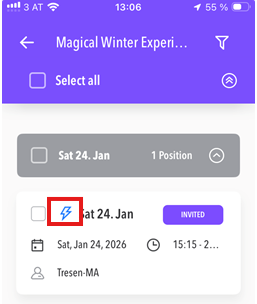
In the employee app, automated assignments are also clearly marked by the blue lightning icon, indicating that the function was planned automatically.
Automated Closing of Functions (Auto-Close)
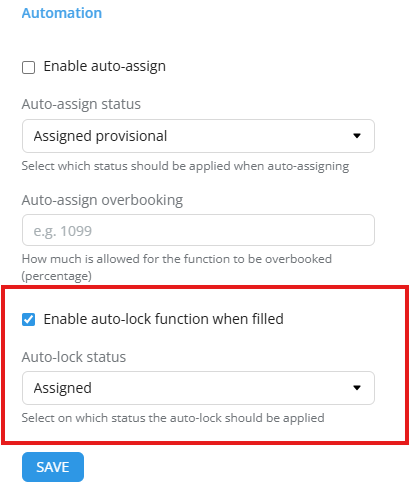
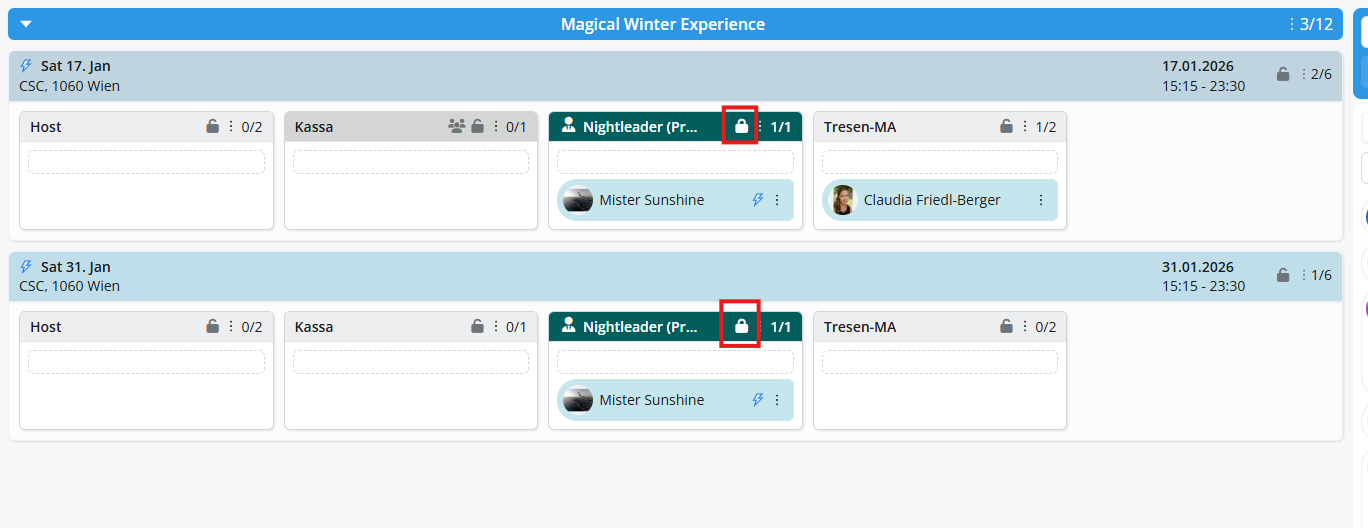
With automated closing, a function is automatically locked for new registrations as soon as it is fully staffed.
Like automated assignment, this setting can be configured globally or per event.
Effect
- Employees can no longer apply for the function once the target number is reached.
- The function is closed automatically, without any manual intervention.
Use independent of automated assignment
Auto-Close can also be used without using Auto-Assign.
In this case:
- Overbooking is not possible
- The function is closed immediately once the desired number of employees has been assigned
Related Articles
Was this article helpful?
That’s Great!
Thank you for your feedback
Sorry! We couldn't be helpful
Thank you for your feedback
Feedback sent
We appreciate your effort and will try to fix the article