To use this functionality, you need the Contracts Add-On as well as a valid contract with YouSign for digital signatures.? Our team is happy to support you at support@staff.cloud when creating templates.
In this article you will learn how to create a new contract template, which settings are required and how to use placeholders and attributes correctlyAccess Contract Templates
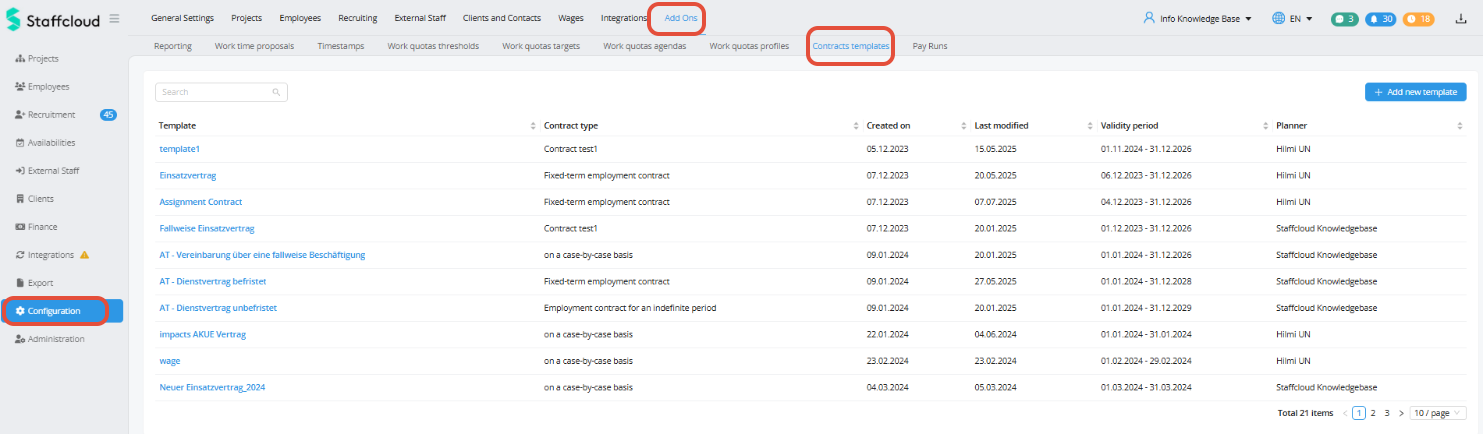
Go to: Configuration → Add-Ons → Contract Templates. Here you can edit existing templates or create new ones:
Create a New Template
Click "Add new template". The editor will open.
Basic Settings
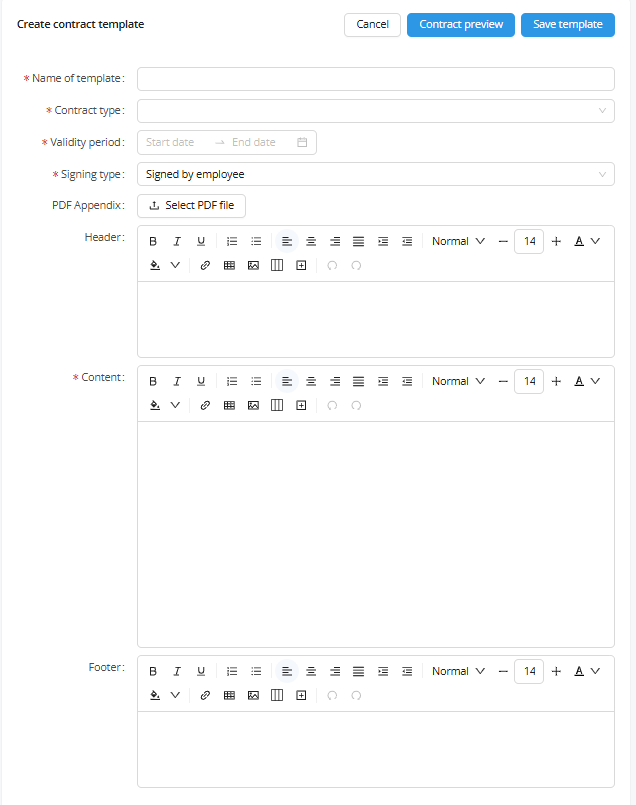
Each template requires the following:
- Name: Internal template name (e.g. "Fixed-Term-Employment Contract EN 2026")
- Contract Type: Select for which contract type this template is valid. The contract type refers to the value stored in the employee profile. Contract types are configurable collections, e.g. permanent contract, short-term employement, freelance contract,.. The template will only apply if the employee´s contract type matches.
- Validity period: Defines how long this template is valid and selectable. Useful for handling legal updates and versioning.
- Signature type: Seal only → Contract is sent for information only (company electronic seal). Digital signature required → Employee must digitally sign via YouSign
- PDF Appendix (optional): You can attach additional .pdf files (e.g. training documents, privacy notes...)
Formatting the table and using placeholders
Use the formatting options for Header, Content and Footer.
Use Placeholders to automatically insert system data into the contract. Examples from the employee profile:
First name / Last name
Address
Date of birth
Contract type
Employee ID
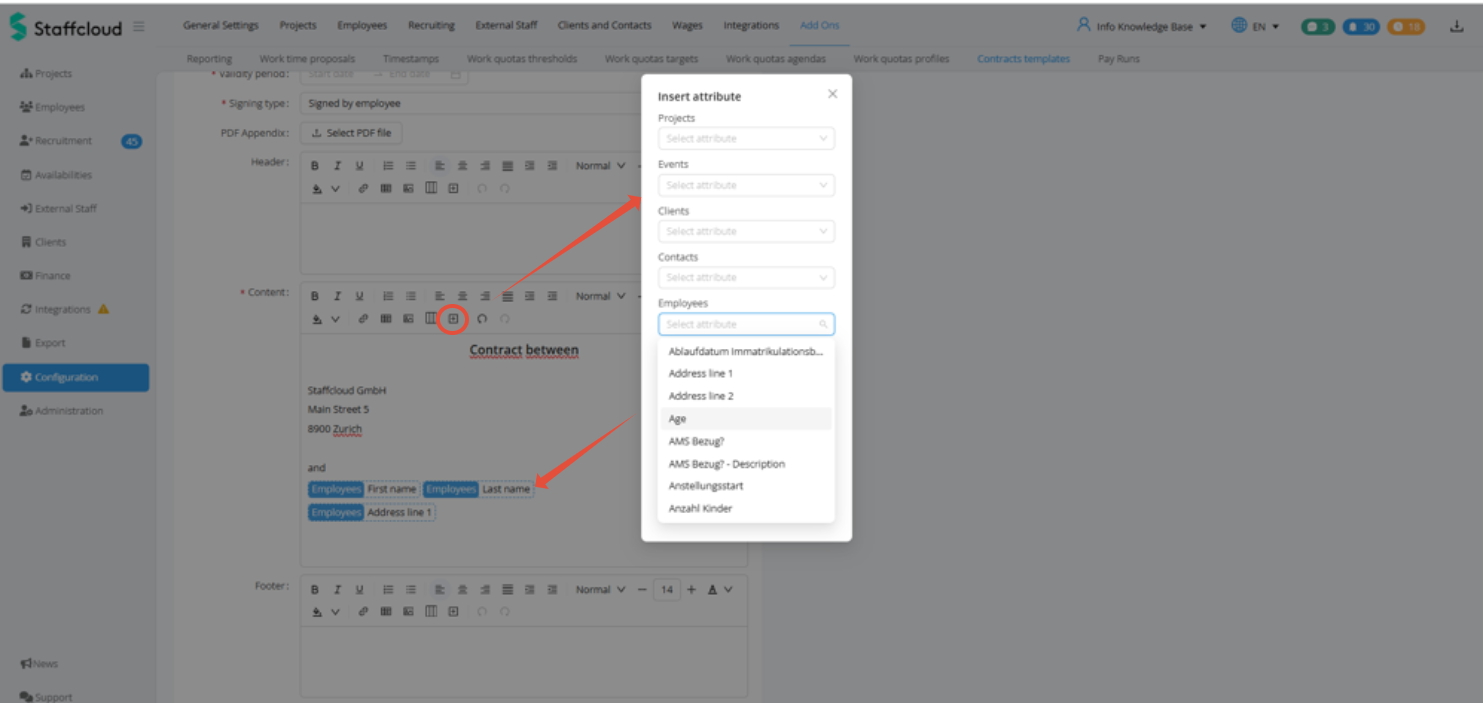
You can also insert attributes from:
- Projects
- Events
- Clients
- Contacts
- Assignments
- Wages
This allows dynamic contract wording such as: Max (employee first name) Muster (employee last name) will work on May 15, 2026 (assignment start date) at the Summer Festival (Event name) as service staff (assignment function)
Under "Data", special system attributes are available:
Company electronic seal
Employee digital signature
Contract sending date
These are typically placed at the end of the template.
Best Practices
- Use the validity period instead of overwriting templates.
- Always test with a test employee profile.
- Ensure all required fields are maintained in employee records.
- Separate templates by country/legal framework if applicable.
Was this article helpful?
That’s Great!
Thank you for your feedback
Sorry! We couldn't be helpful
Thank you for your feedback
Feedback sent
We appreciate your effort and will try to fix the article