Pre-Check-Ins enable employees to report their attendance status before the shift starts: on time, late, or no show. The status is visible in scheduling and planners can be notified automatically via Inbox and/or email. Pre-Check-Ins are separate from the actual check-in/check-out used for time tracking—this is an early status update.
Table of Content
- Availability & Activation
- What are Pre-Check-Ins?
- Configuration
- Employee experience (App)
- Planner experience
- Special case: “No Show”
- Troubleshooting
- Related Articles
Availability & Activation
This feature is now available free of charge for all users of Mobile Time Tracking.
Activation: Please contact support@staff.cloud so we can enable Pre-Check-Ins for your organization.
Visibility depends on feature enablement and your configuration.
What are Pre-Check-Ins?
Pre-Check-Ins open at a planner-defined time (e.g., 60 minutes before shift start). When the Pre-Check-In opens:
Employees are notified (Push, Email, or both, depending on settings).
Employees select one of:
On time
Late
No Show
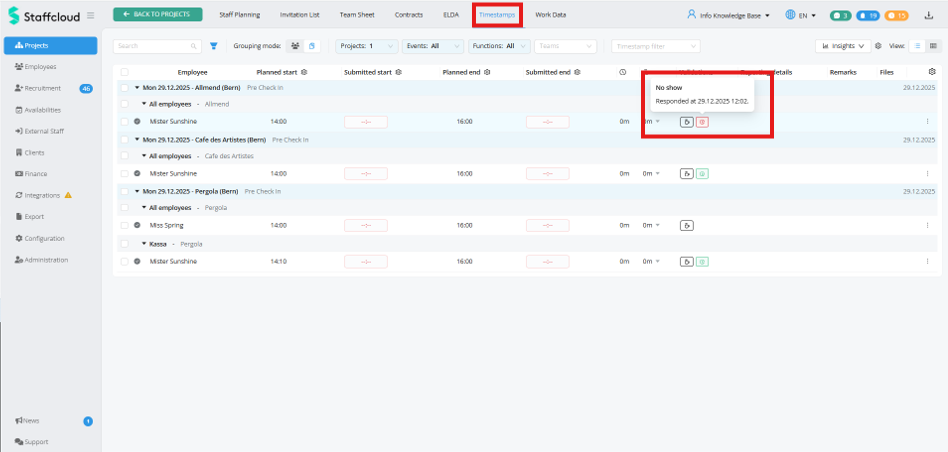
Submissions appear in Staff Planning → Timestamps
Optionally, planners receive a Staffcloud Inbox message and/or email for each submission.
Configuration
1) Enable Pre-Check-Ins & set the opening time
Path: Configuration → Projects → Event settings
You can:
- Enable Pre-Check-Ins
- define when the Pre-Check-In opens
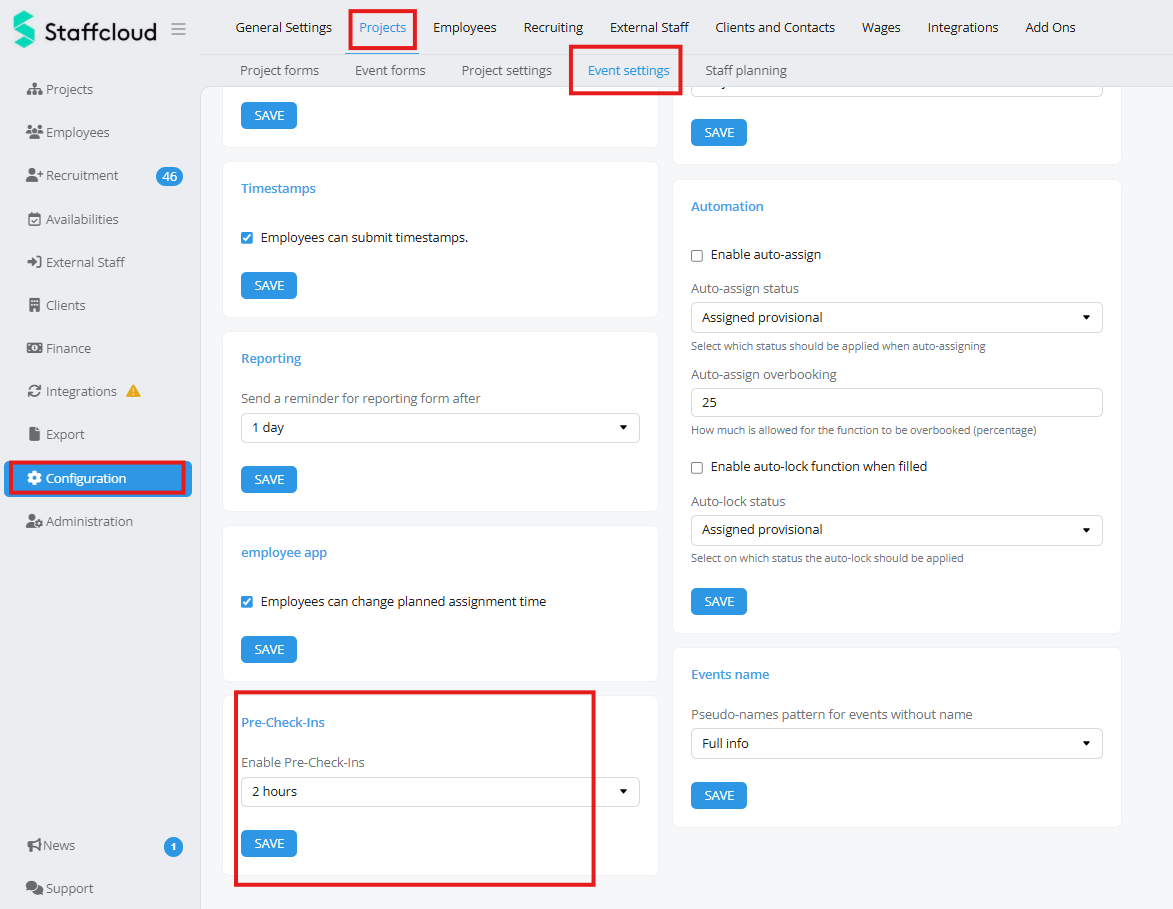
Roadmap note: This setting will soon also be available in event settings for individual events.
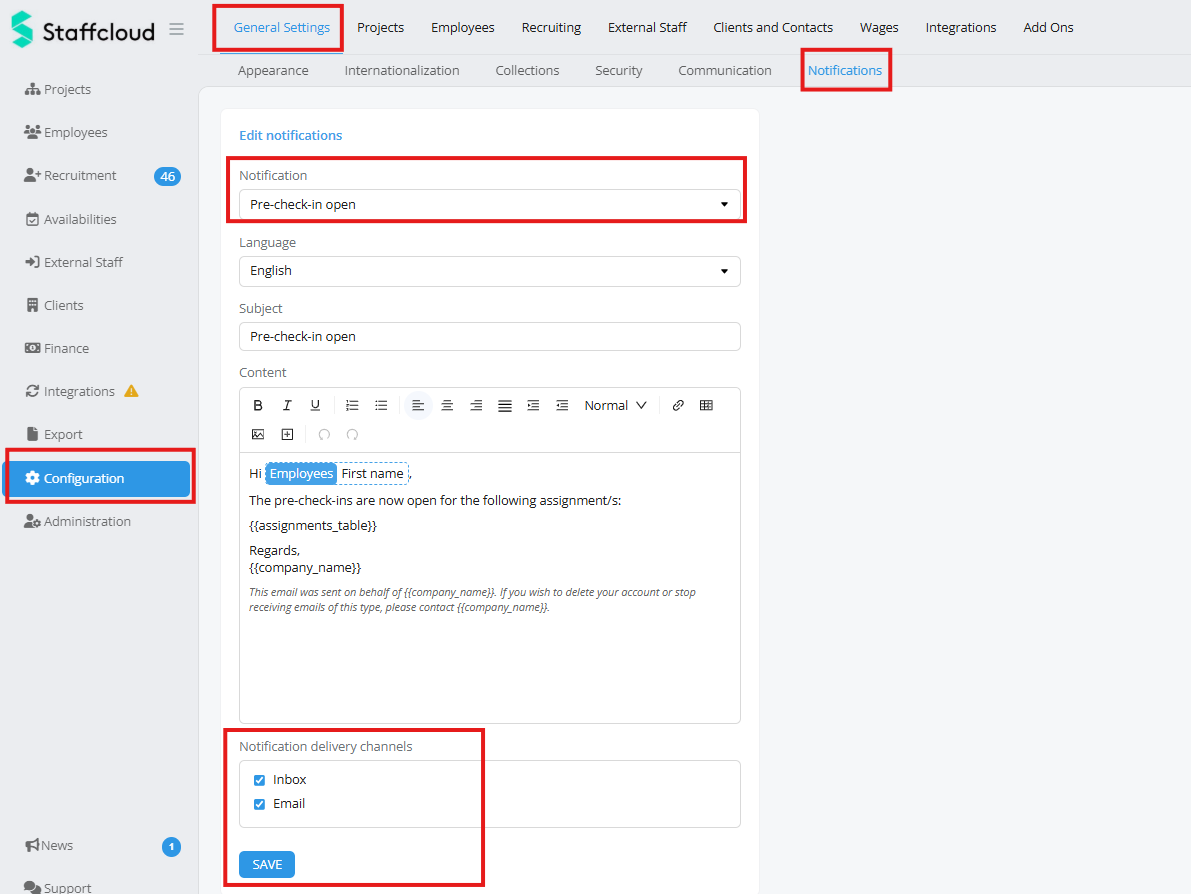
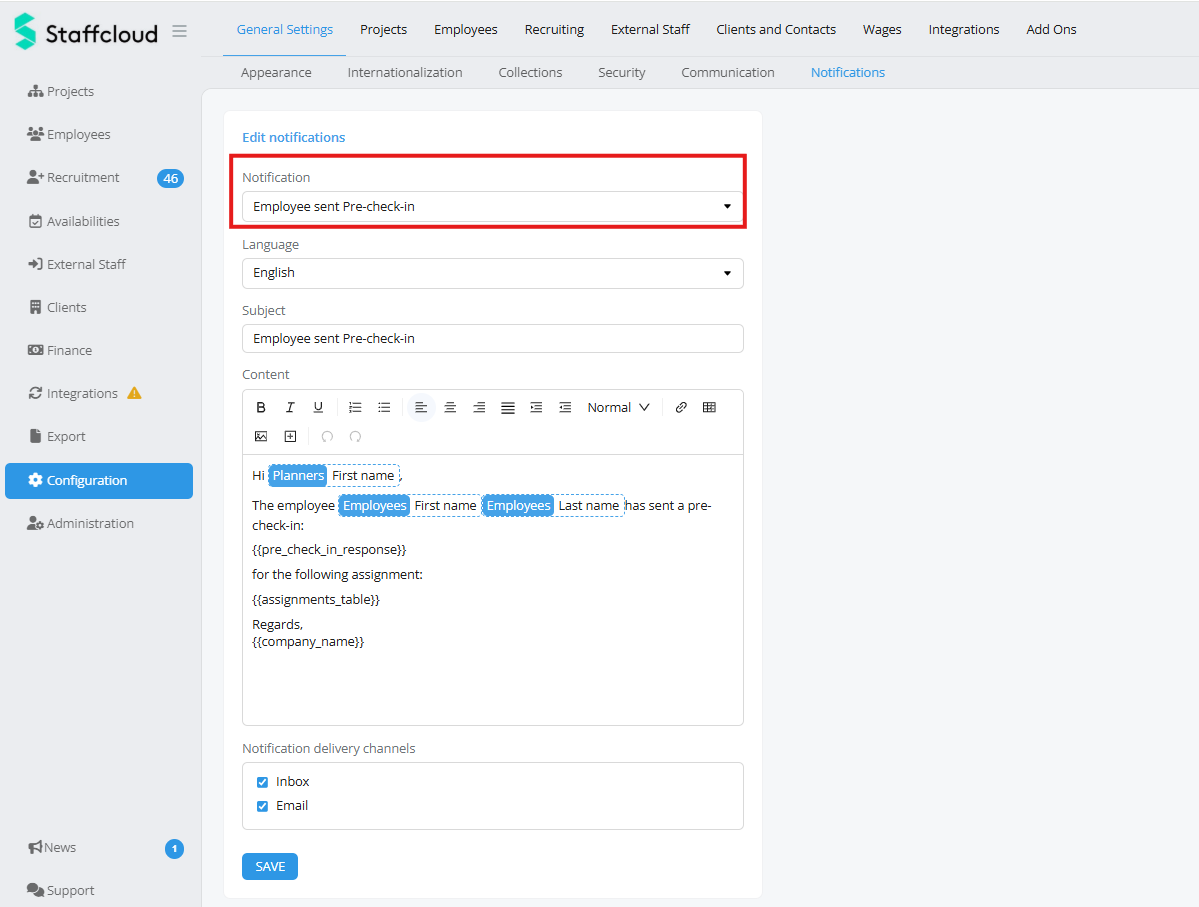
2) Configure notifications
Path: Configuration → General settings → Notifications
You can control:
- Employee notifications (Push/Email/both)
- Planner notifications (Inbox and/or Email) for Pre-Check-In submissions
? Learn more: Notifications overview: Managing notifications
Employee experience (App)
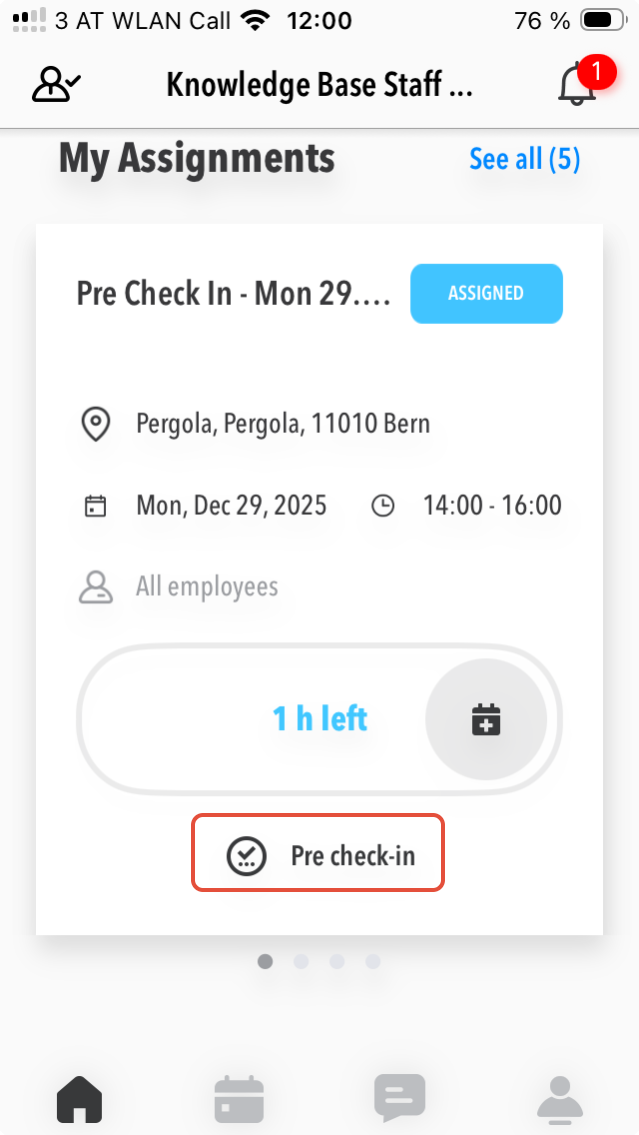
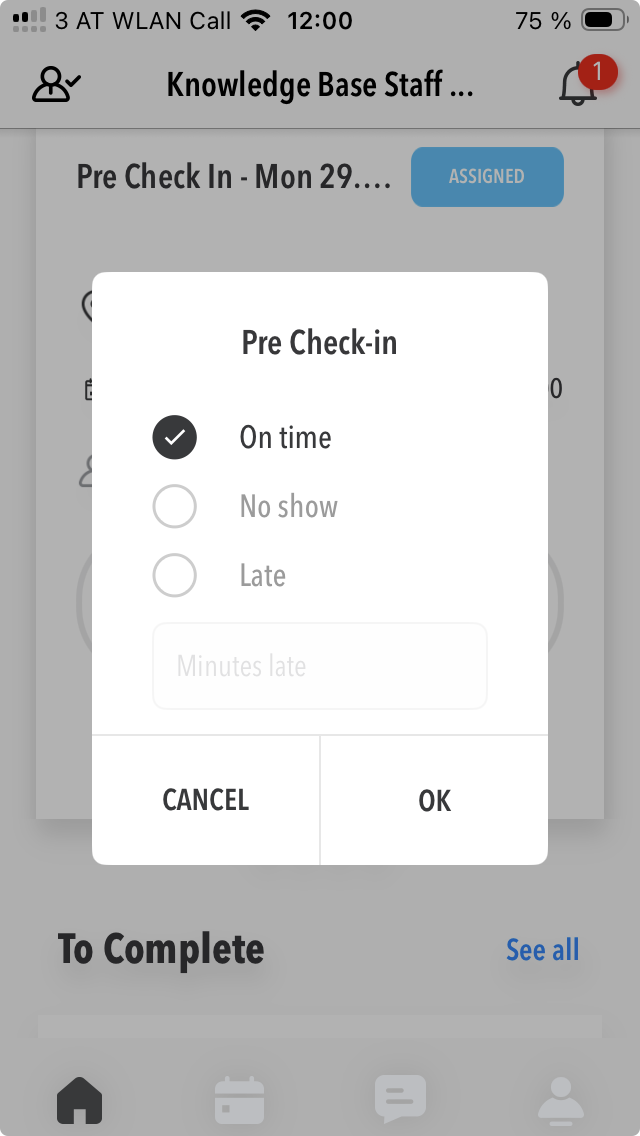
- From the configured opening time, the Pre-Check-In is shown in the app.
- Employees receive a notification (as configured).
- Employees select on time / late / no show.
Planner experience
Depending on your notification settings:
- Planners receive an Inbox message and/or email for each Pre-Check-In.
Additionally:
- All Pre-Check-Ins are shown in Staff Planning → Timestamps.
Special case: “No Show”
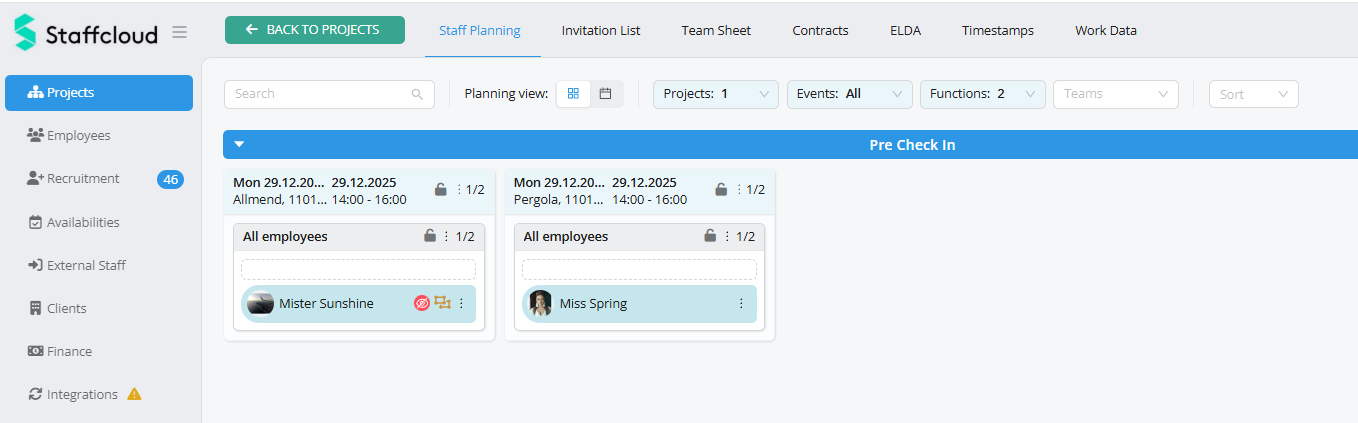
If an employee submits No Show:
- an absence entry is recorded in the calendar
- and the status is visible directly in planning
Troubleshooting
Employees don’t receive notifications
- Check: Configuration → General settings → Notifications
- Check (Push): device/app permissions & push settings
- Check: Pre-Check-In opening time is configured correctly
Planners don’t receive Inbox/Email
- Check: planner notification settings (Inbox/Email) are enabled
- Check: email delivery (spam/filters) for email notifications
Related Articles
Was this article helpful?
That’s Great!
Thank you for your feedback
Sorry! We couldn't be helpful
Thank you for your feedback
Feedback sent
We appreciate your effort and will try to fix the article