In this article, I will learn
how to set a tracking code, for example for Google Tag Manager, for the application form as an administrator.Jump to the instructions on
Set tracking code in Staffcloud
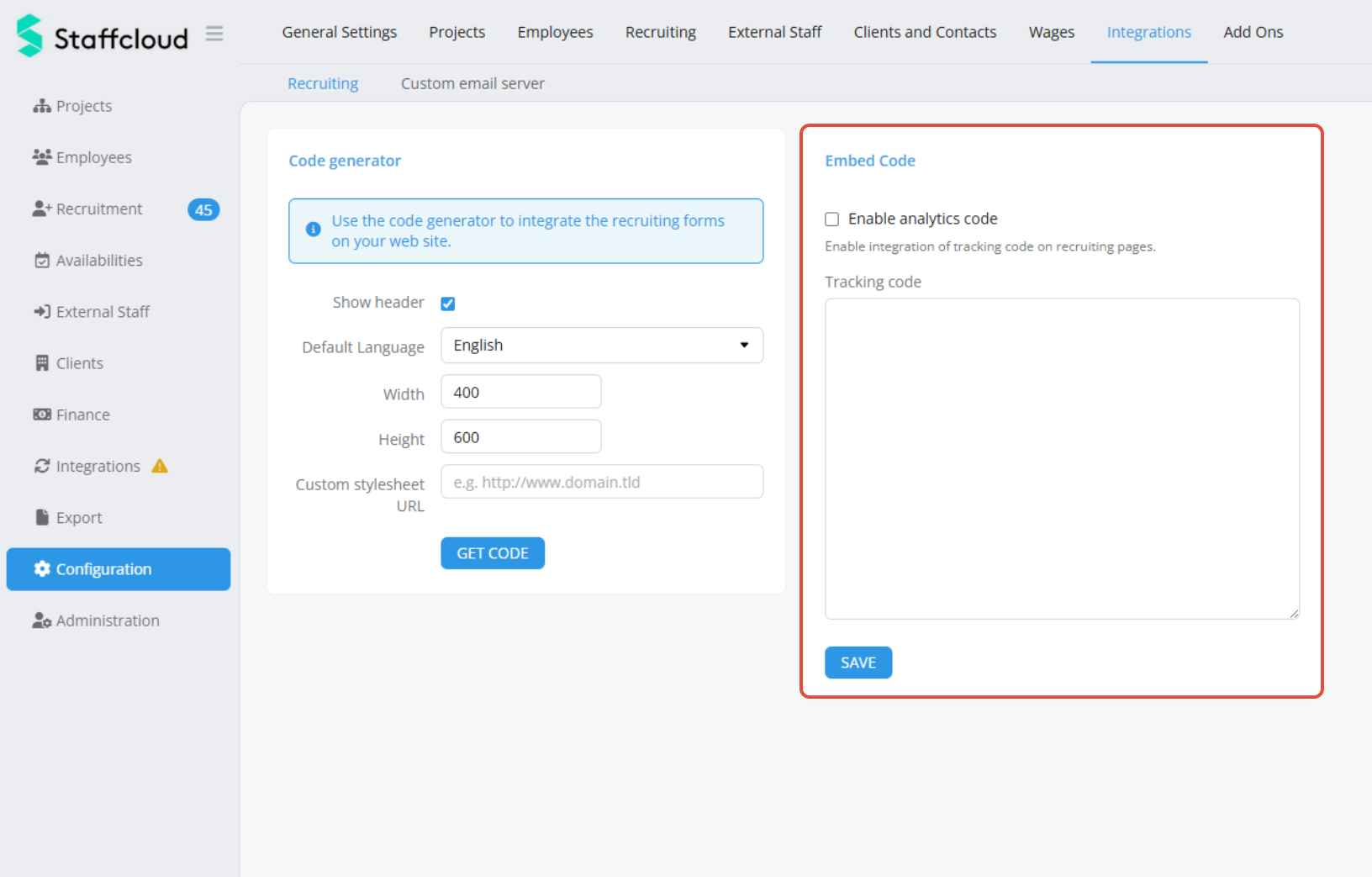
After you have extracted the tracking code from your tracking tool, navigate to “Configuration” > “Integrations” > "Recruitment" in Staffcloud. There you will find an input field called “Tracking code” in the “Embed code” section, where you can insert the code.
To activate the tracking code, check the box next to “Enable Analytics Code” above the input field and click “Save.”
From this point on, the tracking code will transmit data to your analytics tool.
Was this article helpful?
That’s Great!
Thank you for your feedback
Sorry! We couldn't be helpful
Thank you for your feedback
Feedback sent
We appreciate your effort and will try to fix the article